QR Code
The Portal QR code feature enables quick connection between the Axon Ivy Portal and the Axon Ivy mobile application. By scanning the QR code, the mobile app automatically obtains the login URL and username.
QR Code Features
The Portal provides two types of QR codes:
QR Code Type |
Purpose |
|---|---|
Mobile App Download |
Download the Axon Ivy mobile app from iOS or Google Play |
Portal Connection |
Connect to Portal with auto-configured URL and username |
Configuration
HowTo: Activate the QR Code Feature
Enable the QR code menu item in the user menu:
Open Admin Settings
Set Portal.UserMenu.ShowQRCode to true
HowTo: Configure Base Portal URL for Mobile Application
Customize the Portal URL used by the mobile application:
Open Admin Settings
Set Portal.UserMenu.BaseQRCodeUrl to your Portal base URL
Using QR Codes
HowTo: Download the Axon Ivy Mobile Application
Select the Mobile app user menu item.
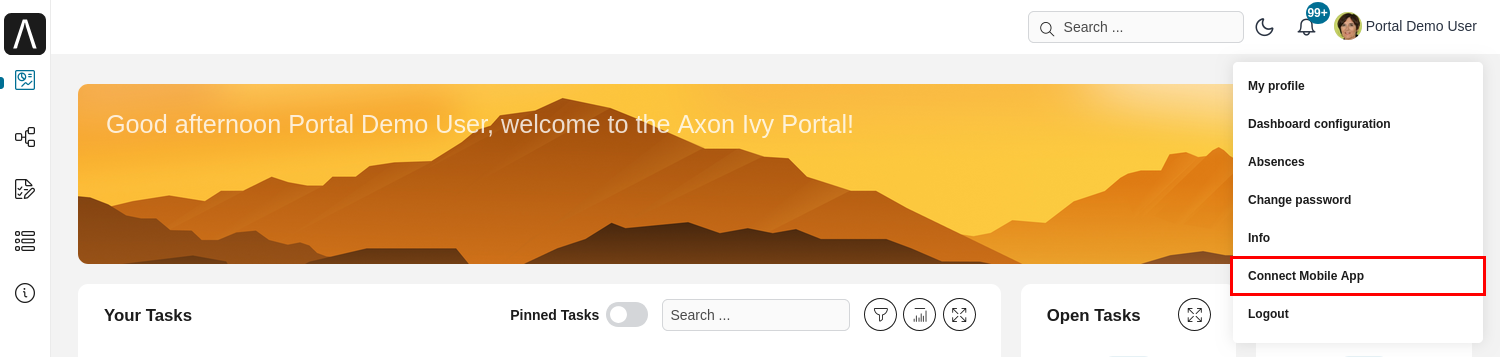
Choose your mobile device platform:
iOS: For Apple devices (iPhone, iPad)
Google Play: For Android devices
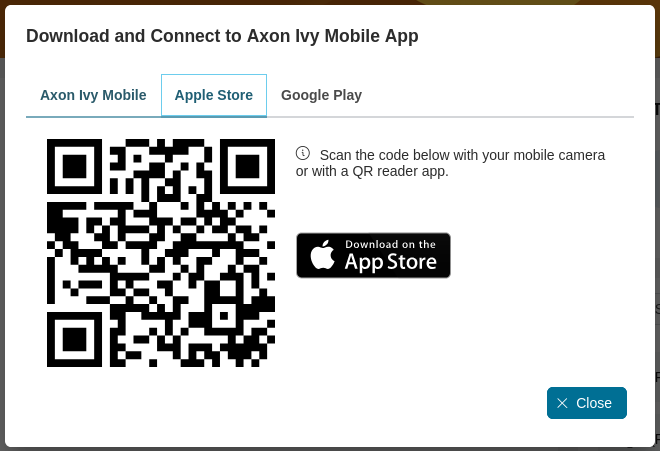
Open your mobile device camera and scan the QR code to download the app.
HowTo: Connect to Portal via Mobile Application
Select the Mobile app user menu item.
A dialog with a QR code will be displayed.
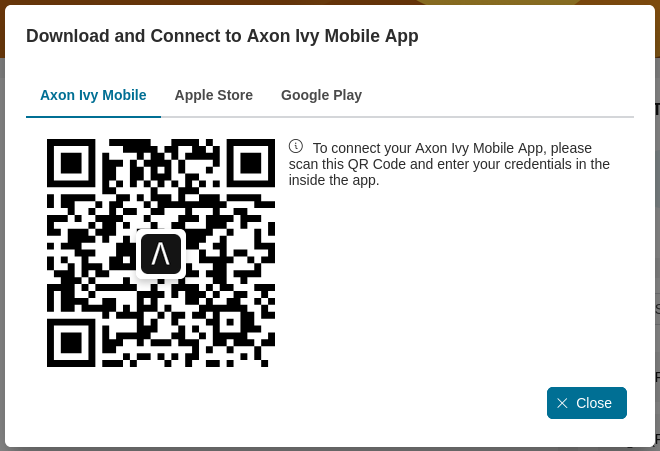
Open the Axon Ivy mobile application on your device.
Scan the QR code to automatically configure:
Portal connection URL
Your username
Tip
The QR code provides a secure and convenient way to connect without manually entering the Portal URL and username.