Portal Multi Language
The translation service integrated from Axon Ivy makes it easy to translate text content into your end user’s language, eliminating language barriers in process automation.
Translation Overview
The Portal multi-language feature provides:
Automated Translation: Service-powered translations for supported languages
Manual Translation: Manual input when translation service is not configured
Flexible Application: Available for dashboards, processes, and other customizable text fields
Note
Portal translation requires both Portal.TranslationService.Enable set to true and proper translation service configuration. Otherwise, you can translate text fields manually.
HowTo: Enable the Translation Service
To use Axon Ivy’s translation service:
Open Admin Settings
Set Portal.TranslationService.Enable to true
Configure the translation service variable, refer to Axon Ivy translation service
HowTo: Translate Text
Look for the translator icon on supported input text fields. For example, when creating a private dashboard:
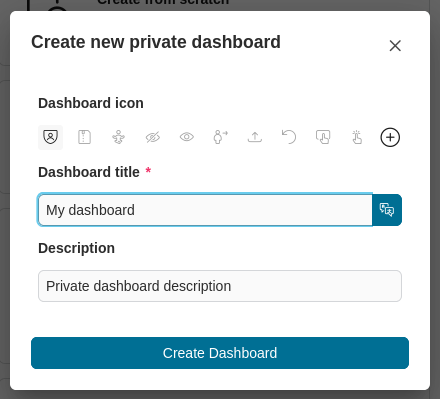
Click on the translator icon to open the Setting Multiple Languages dialog.
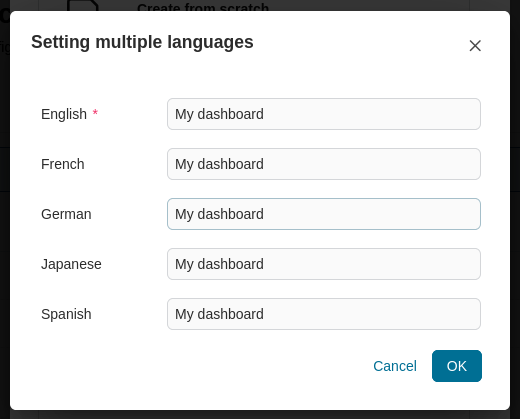
Click on the input text field of your target language.
If the translation service is enabled, the text will be automatically translated. Click Auto translation to accept the translated text.
If the translation service is not configured, enter translations manually for each language.