Accessibility
Important
To enable/disable keyboard shortcuts, go to My Profile > Accessibility settings. See Accessibility settings for details.
Keyboard Shortcuts Quick Reference
Shortcut |
Action |
|---|---|
Navigation |
|
Alt + 1 |
Jump to Dashboard |
Alt + 2 |
Jump to Process section |
Alt + 3 |
Jump to Task section |
Alt + 4 |
Jump to Case section |
Alt + 5 |
Jump to Search section |
Alt + 6 |
Jump to User Settings |
Alt + 7 |
Toggle main menu visibility |
Tab |
Cycle through dashboard items (when on Dashboard) |
Widget Focus |
|
Alt + W |
Focus on Task widget (press repeatedly to cycle) |
Alt + Q |
Focus on Case widget (press repeatedly to cycle) |
Alt + A |
Focus on Process widget (press repeatedly to cycle) |
Action Menu |
|
Enter |
Open context menu (when focused on task/case) |
Esc |
Close context menu |
Note
Browser compatibility: Chrome, Firefox, and Edge.
Keyboard layouts: European, Asian, and American keyboards.
macOS users: Replace Alt with Option key.
Why is Accessibility Important?
In today’s digital landscape, ensuring that front-end UIs are accessible to all users is not just a nice-to-have — it’s essential. At Axon Ivy, we recognize the importance of making our portal available to everyone, regardless of their abilities or disabilities. With this in mind, we’ve put significant thought into enhancing the accessibility features within the Axon Ivy Portal. This is only the beginning, and we are committed to continually improving these features. To ensure the highest quality, we have used tools such as the Microsoft Lighthouse Accessibility Checker and adhered to the guidelines of the WCAG 2.1 Level AA standard to evaluate and refine our UI.
Accessibility Approach in the Axon Ivy Portal
We have taken a comprehensive approach to accessibility, addressing the most crucial aspects to create a more inclusive experience. Below are the key areas where we have evaluated and implemented improvements.
Contrast
The contrast between text, buttons, and background elements is vital for users with visual impairments. We have optimized the UI for both Dark Mode and Light Mode in line with the WCAG 2.1 Level AA contrast ratios. This ensures that all components — buttons, widgets, and backgrounds — meet the necessary contrast thresholds to enhance visibility and readability.
Zoom Capabilities
We have revamped the zoom functionalities for both desktop and mobile versions of the portal. Users can now easily zoom in and out while maintaining the clarity and usability of the UI, ensuring accessibility for users who require larger text and images to interact comfortably with the portal.
Keyboard Navigation
We have introduced keyboard shortcuts to streamline the user experience, enabling users to quickly navigate between main sections and interact with widgets without needing a mouse.
Accessing Context Menus
Once focused on a task or case:
Press Tab to move focus to the actions column
Press Enter to open the context menu
Use the widget shortcut (Alt + W / Alt + Q) to navigate through menu items
Press Esc to close the menu
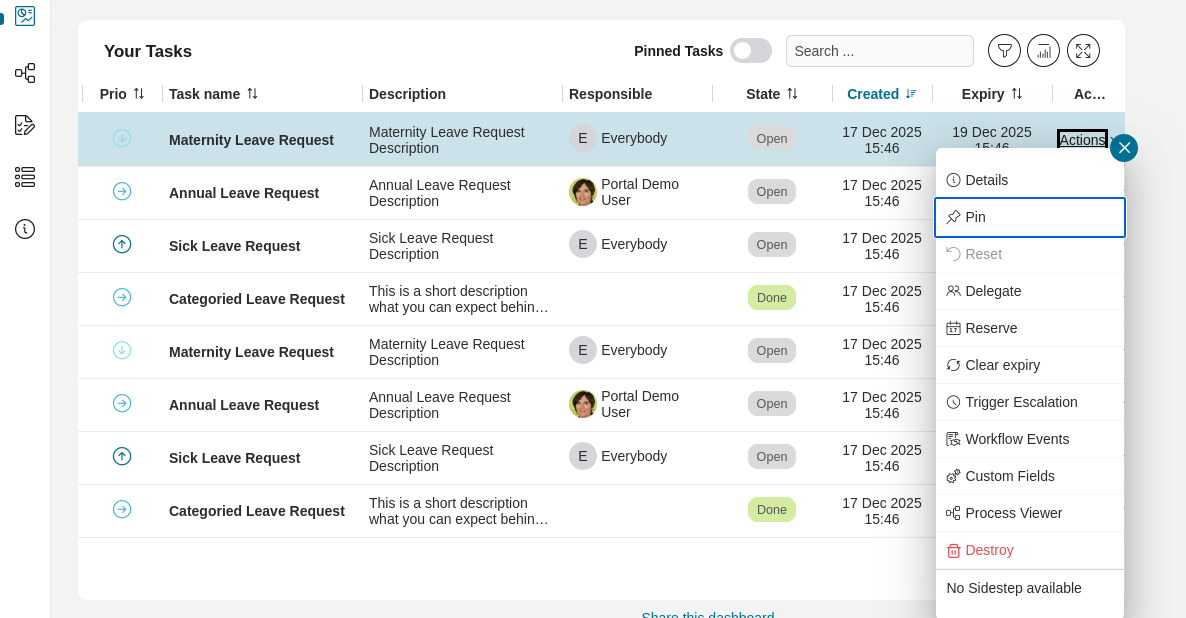
Example: Task Navigation
To work with a specific task:
Press Alt + W repeatedly until you reach the desired task
Press Tab then Enter to open its context menu
Press Alt + W repeatedly to navigate menu options
Press Esc to close the menu
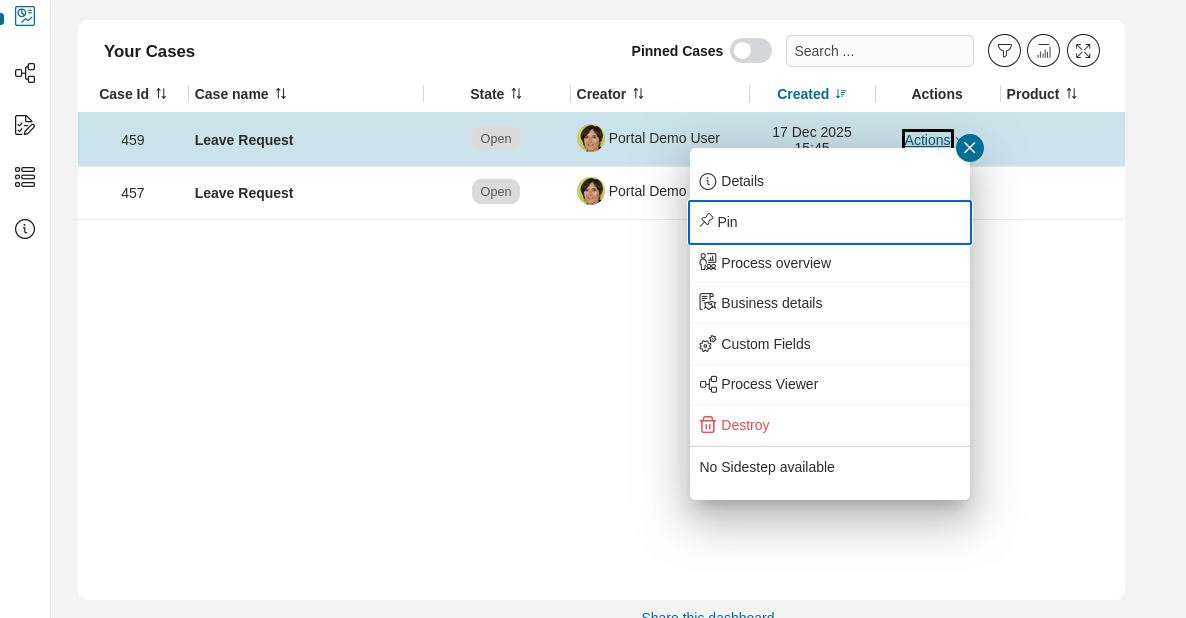
Example: Case Navigation
To work with a specific case:
Press Alt + Q repeatedly until you reach the desired case
Press Enter to open its context menu
Press Alt + Q repeatedly to navigate menu options
Press Esc to close the menu
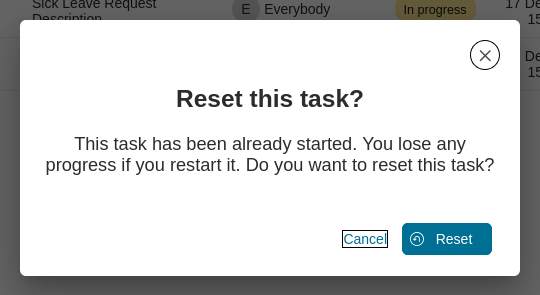
You can also navigate to special dialogs like the reset task confirmation:
Extended Descriptive Elements in the Task and Case List
To improve navigation and accessibility in the portal, we have not only implemented shortcuts for quick access to processes, tasks, and cases, but also added more descriptive elements to the widgets. These enhancements provide a clearer and more detailed display of key information, ensuring optimal support for screen readers.
Screen Reader Support
Important
Activating Microsoft Narrator: Press Ctrl + Windows key + Enter
We rely on Microsoft Narrator to support screen readers, ensuring that users with visual impairments can easily navigate through the portal and understand the information provided.
Note
The portal automatically sets the page language based on your user preferences, allowing the screen reader to read content in your preferred language.
Descriptive Elements in the Task Widget
When you focus on a task element using a keyboard shortcut, the screen reader announces:
“Task Start - Task Name: <task name> - Priority: <priority> - Status: <status> - Expiry Date: <expiry date>”
Information read includes:
Task Name: The name or title of the task
Priority: The priority level (e.g., High, Medium, Low)
Status: The current status (e.g., In Progress, Completed, Open)
Expiry Date: The due date of the task
Descriptive Elements in the Case Widget
When you focus on a case element using a shortcut, the screen reader announces:
“Case Name: <case name> - State: <state> - Created On: <creation date> - Finished On: <finish date> - Owners: <first owner name>”
Information read includes:
Case Name: The name or title of the case
State: The current state (e.g., Open, Done, Deleted)
Created On: The creation date of the case
Finished On: The completion date of the case
Owners: The current owners of the case
Note
If the selected task or case is not in the “Completed” state, all relevant details are read aloud to inform you of the current status.
Accessibility Dashboard Templates
To further enhance usability, we have created an Accessibility Dashboard that simplifies navigation for users with disabilities. This dashboard features a dedicated Shortcuts Widget that displays available shortcuts. When the dashboard opens, this widget is automatically focused and read aloud by the screen reader.
Tip
Each time you access the Accessibility Dashboard, the shortcuts are announced automatically, providing an instant reference.
Integrating the Accessibility Dashboard
You can easily integrate this feature by selecting the “Accessibility Dashboard” template when creating a dashboard.
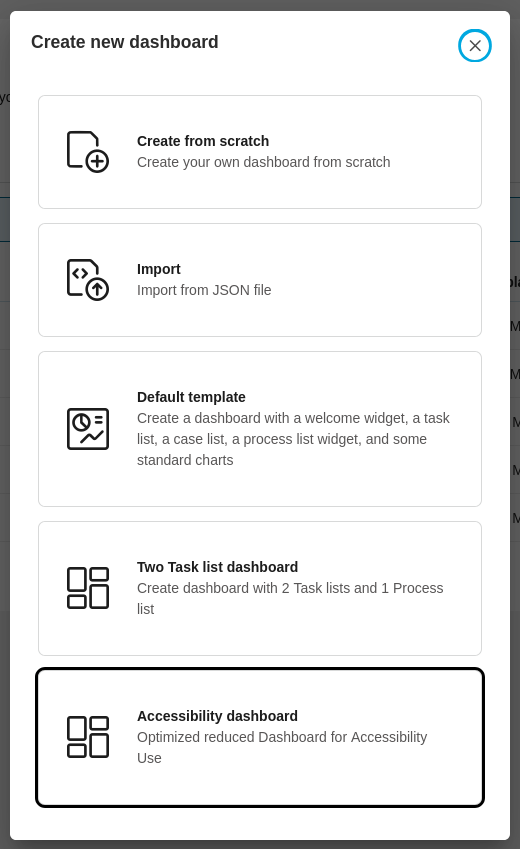
The dashboard contains the following pre-configured widgets:
Shortcuts Widget: Displays and announces available shortcuts via screen reader
Process List Widget: Shows ongoing processes
Task List Widget: Shows your tasks
Case List Widget: Manages cases
Note
These widgets are optimized for use with accessibility features and screen readers.
Adding the Shortcut Widget to any Dashboard
The Shortcut Widget can also be integrated into any other dashboard.
Follow these steps:
Create a custom dashboard widget
Select the widget type: “Custom Dashboard Widget”
Choose the Accessibility Shortcut Widget
Add it to the screen
Tip
Add the Shortcuts Widget to your main dashboard for quick reference without switching views.