Dashboard
Introduction
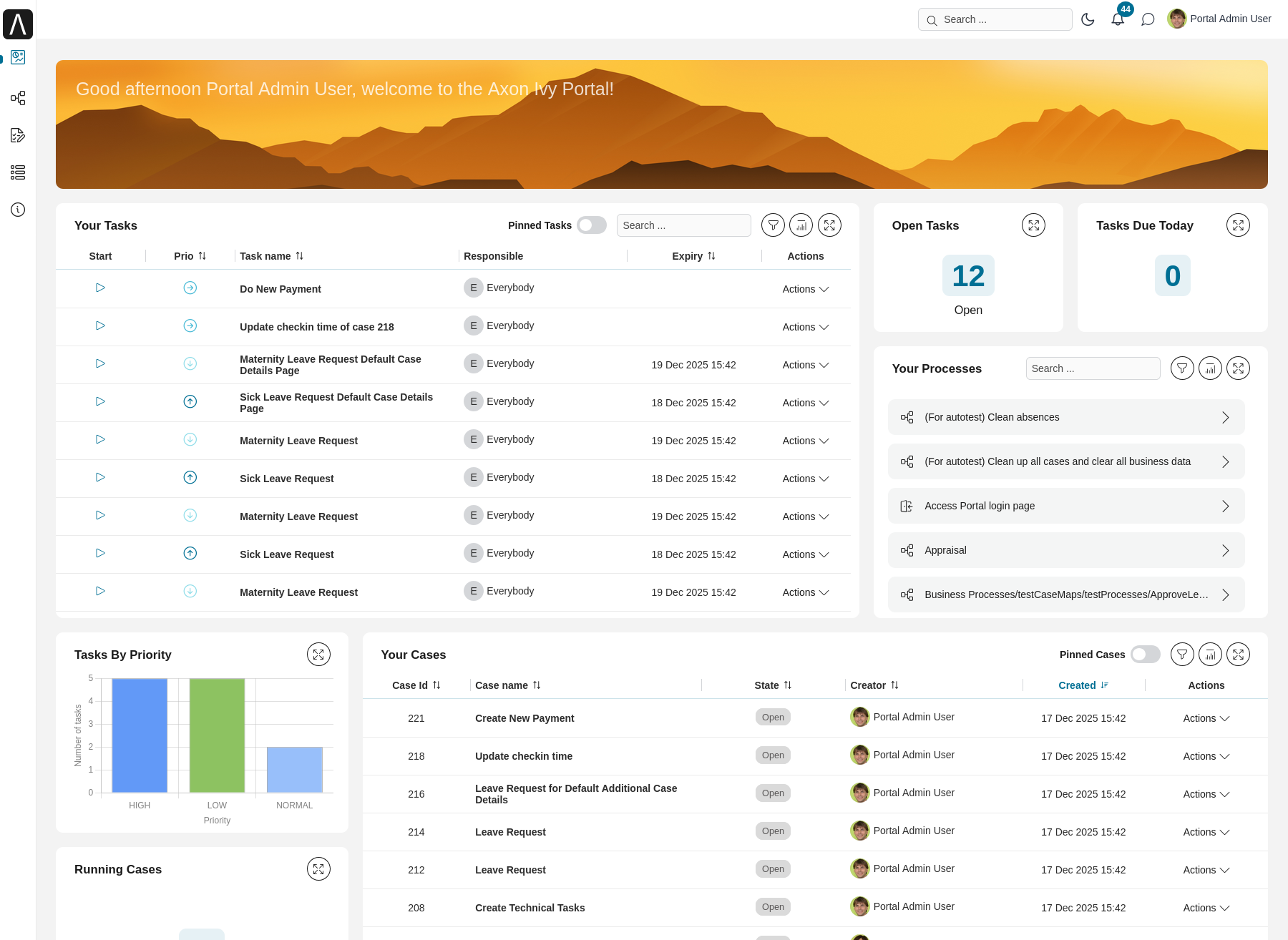
The Axon Ivy Portal Dashboard is your central workspace and the first page you see after successful login. It provides an at-a-glance view of your work with customizable widgets showing tasks, cases, processes, and statistics.
Accessing Your Dashboard:
Click Dashboard in the Portal navigation menu
Click the logo image at the top left of the header
Available Widgets
The dashboard contains a set of widgets you can arrange and configure to match your workflow. Your company may have defined standard layouts and available widgets.
Widget |
Purpose |
|---|---|
Task List |
Display and manage tasks assigned to you or your roles |
Case List |
Track and monitor case progress and details |
Process List |
Access and start available processes |
Process Viewer |
Visual representation of process flows |
Statistic Chart |
Graphical display of client statistical data |
Welcome |
Personalized greeting based on local time |
News Feed |
Display relevant information and announcements |
External Page |
Embed external webpages in your dashboard |
Notifications |
View all notifications based on your settings |
Custom Widgets |
Project-specific widgets provided by developers |
Standard Widget Features
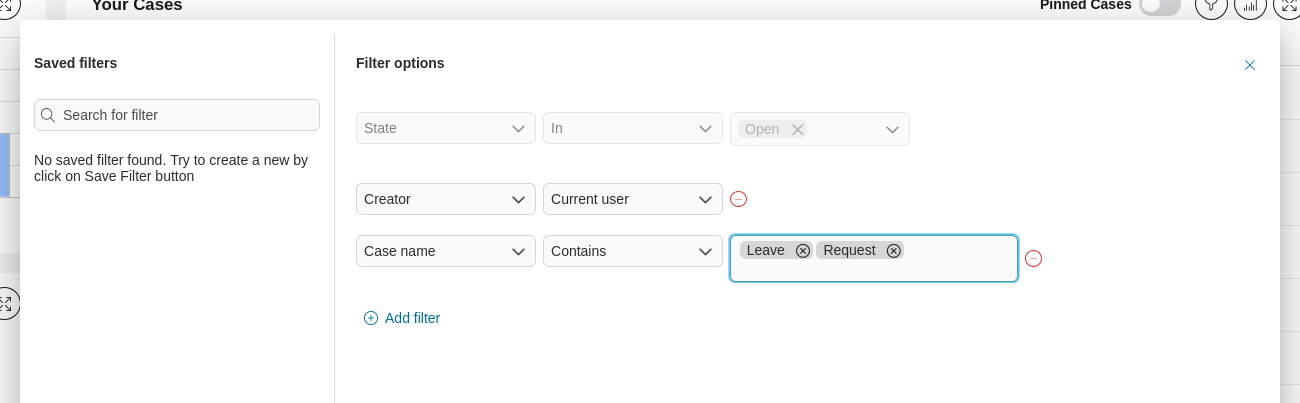
Task List, Case List, and Process List (compact mode) widgets share these standard features:
Saved filters and filter options: Customize what data you see
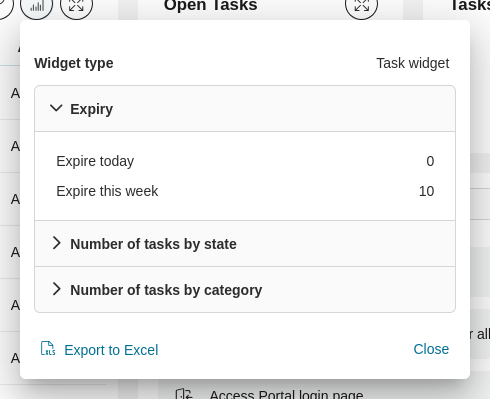
Widget information: Access additional details and settings
Customizing Your Dashboard
Important
Required Permissions: Only users with the 🔑DashboardWriteOwn or 🔑DashboardWritePublic permission can see and access the Dashboard Configuration menu item in the user menu. These permissions allow you to add, edit, reorder, show, and hide private or public dashboards.
If you have the required permissions, you can personalize your dashboard layout by:
Accessing Dashboard Configuration from the user menu to enter configuration mode.
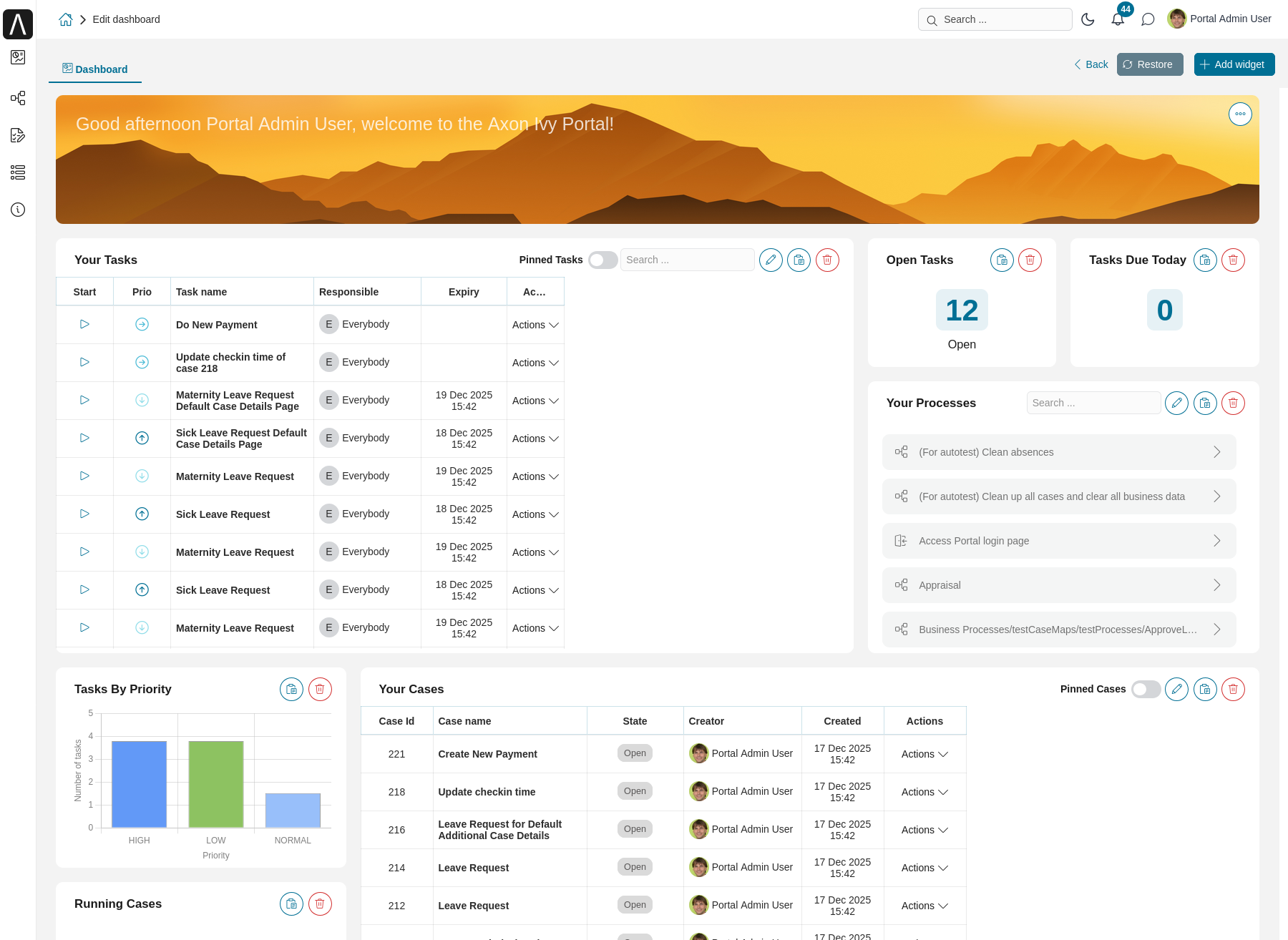
In configuration mode, you can:
Move widgets: Drag and drop widgets to new positions (helper lines assist placement)
Edit widgets: Click Edit to open the configuration panel
Delete widgets: Remove widgets you don’t need
Add new widgets: Use the wizard to create and add new widgets
Reset dashboard: Undo all changes and return to the standard layout
Resize columns: Adjust column widths in Task List/Case List widgets by dragging gridlines
Add a new widget
To add a widget to your dashboard:
Enter configuration mode of your desired dashboard.
Click the + Add widget button
A widget selection dialog appears showing all available widgets with their names and descriptions
Select the widget type you want to add
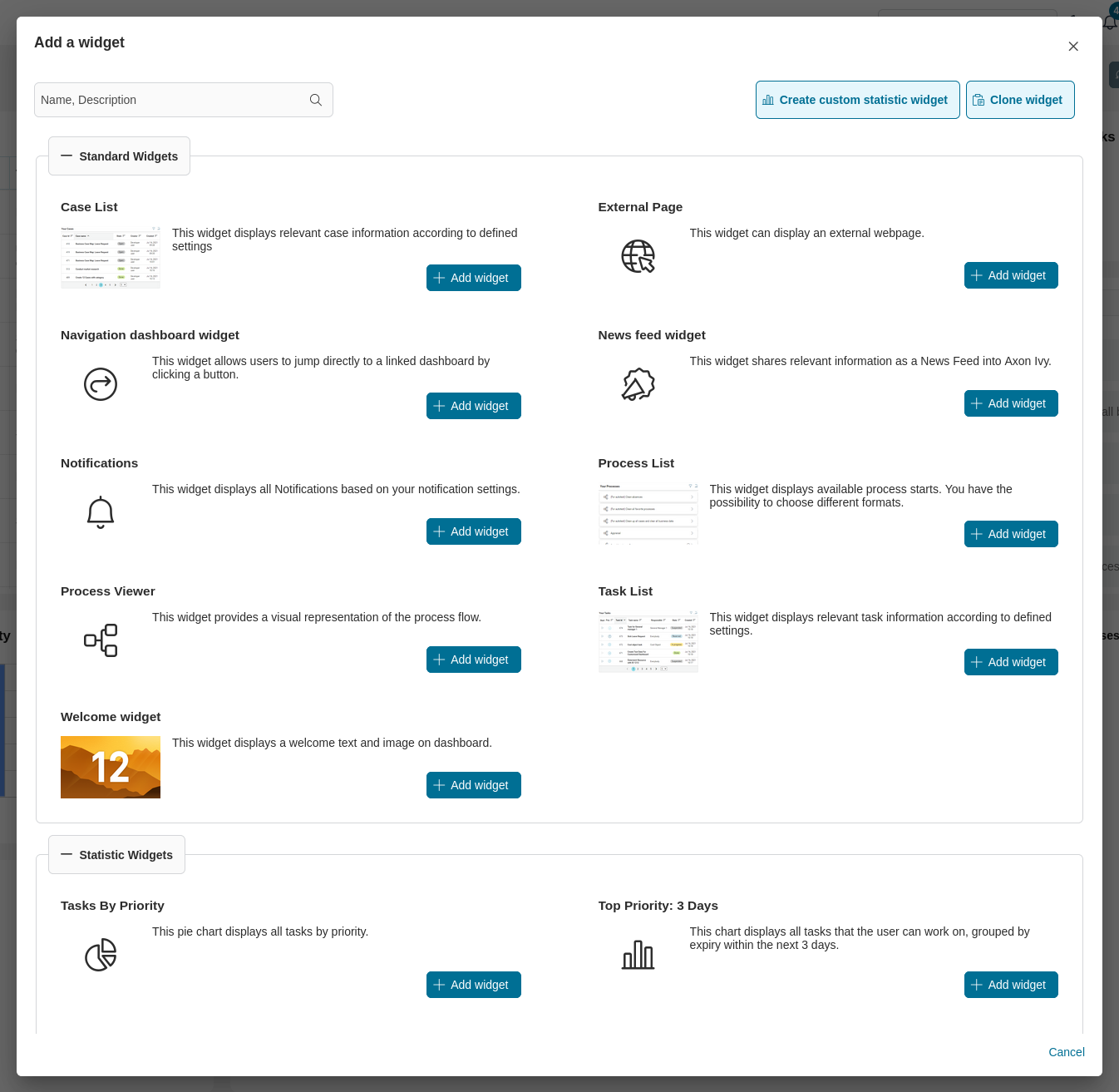
A configuration wizard will guide you through setting up your chosen widget. After completing the setup, click the save icon to add the new widget to your dashboard.
Widget Details
The following sections describe each widget type and its configuration options in detail.
Task list widget
Adding a task list widget will give you total flexibility about what you want to see and how.
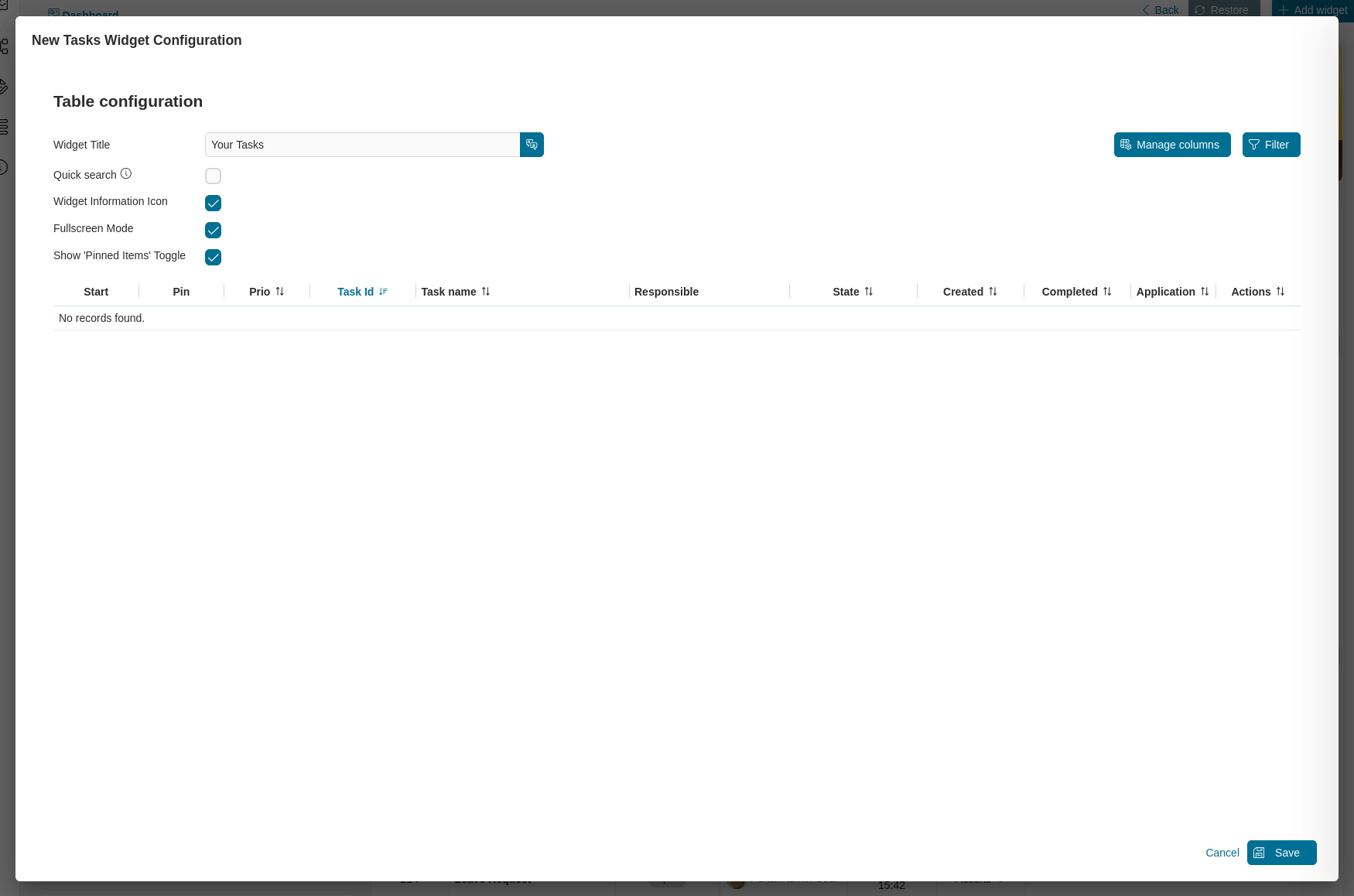
On the widget configuration panel, you can define the widget name, enable the quick search function, show or hide the widget information and fullscreen mode icons, manage columns and filters, edit the default sort order of the table columns by clicking on the column headers.
Filters panel
By clicking on the Filter button, you can configure the complex filter for your widget and get a preview of it by clicking on the Apply button. Please refer to Complex Filter for more details.
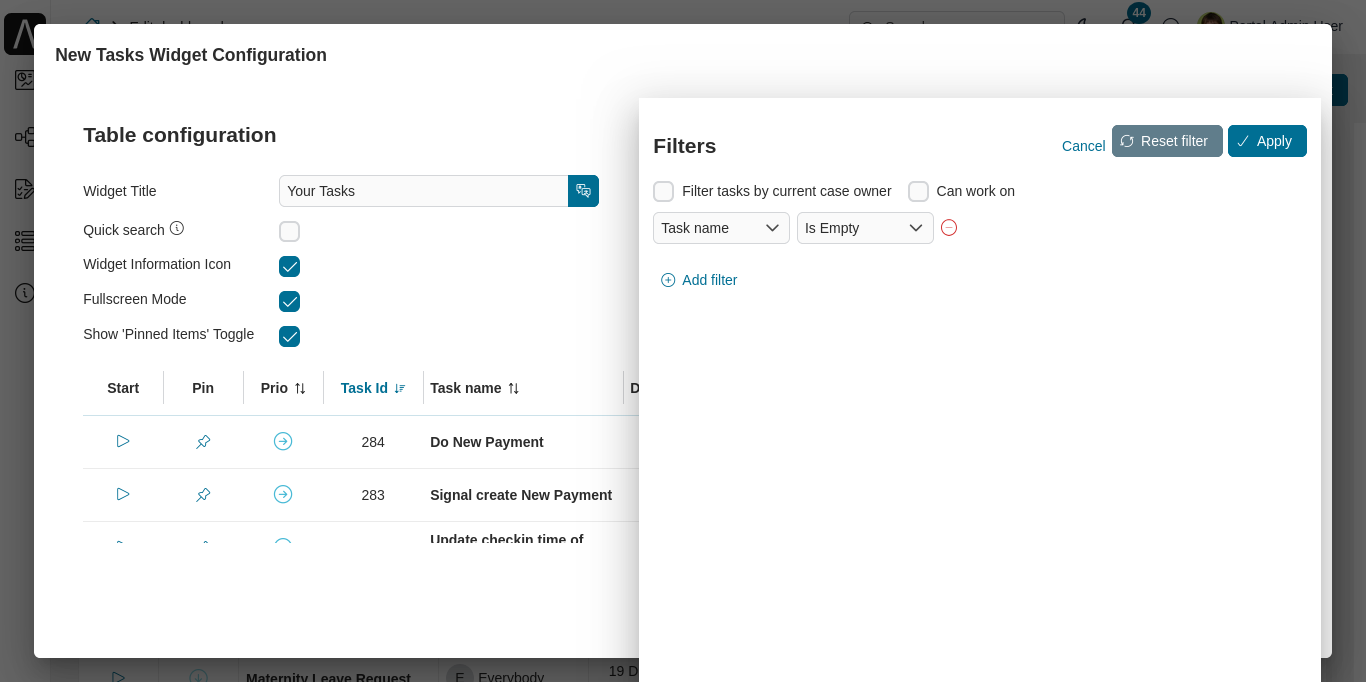
Important
Filter tasks by current case owner filter is hidden by default. To make it visible, you need to set the Portal.Cases.EnableOwner setting to true in the Admin Settings.
Column Management
By clicking on the Manage Columns button at the top right of the configuration panel. You get the following dialog:
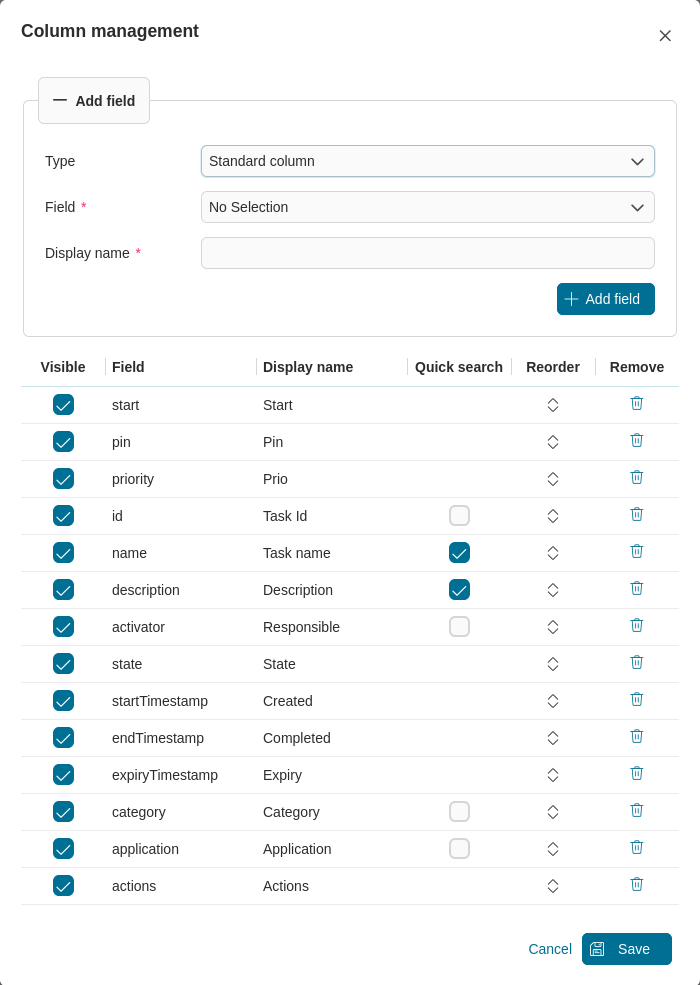
In the column management dialog, you find two sections to configure the table columns:
Add field section: add any available fields to your widget table
Columns section: configure the widget table itself as follows:
Enable visibility
Enable the quick search by selecting the quick search checkbox
Reorder the columns by drag and drop using the arrows
Remove columns
Important
Quick search feature is supporting these fields:
Standard fields: Id, name, description, category, responsible (display name), and application.
Task custom fields: fields that have type
STRINGorTEXT.Case custom fields: fields that have type
STRINGorTEXT.Business case custom fields: fields that have type
STRINGorTEXT.Quick search is enabled for the standard field name and description by default.

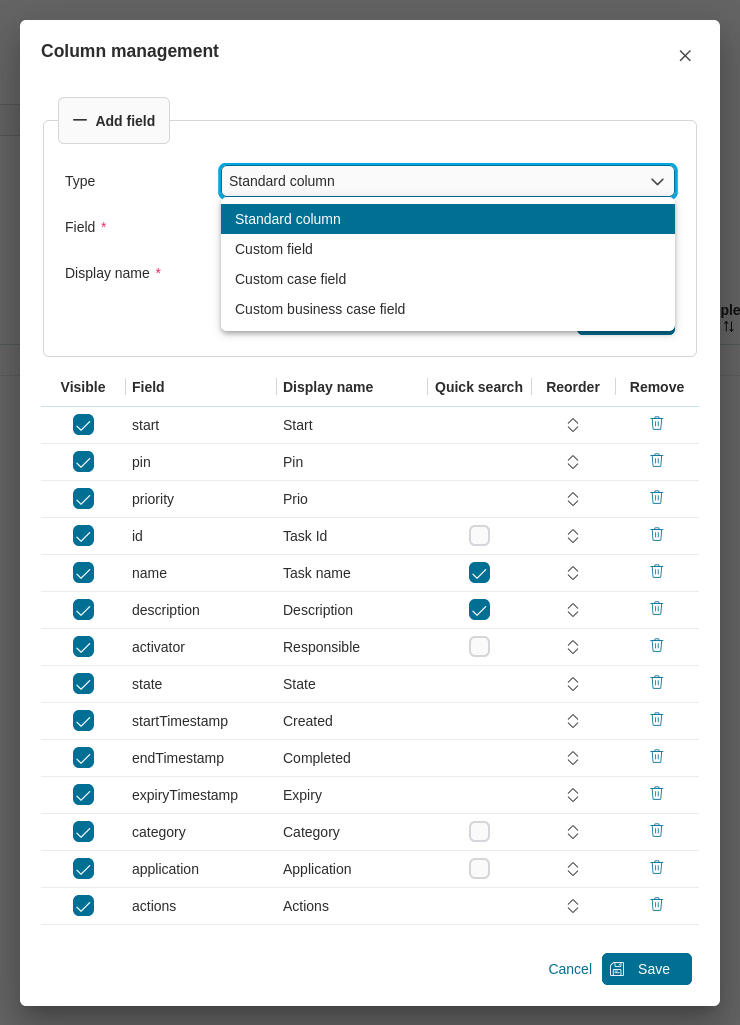
Portal supports to display custom case fields and business custom case within the task list.
Excel export
In view mode, you can export all data of the task widget by clicking on the link Export to Excel at the bottom left corner of the widget information panel.
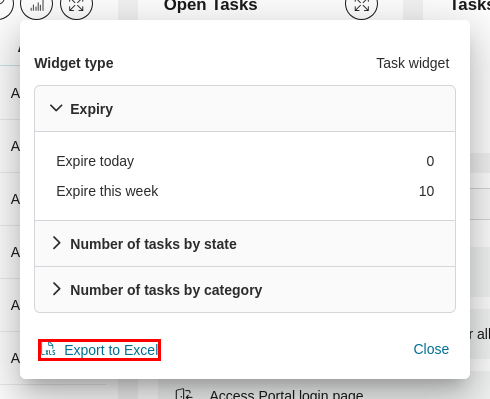
If the number of exported tasks exceeds the maximum row number of the Excel file, Portal will separate data into multiple Excel files and put them into a single zip file.
Quick search
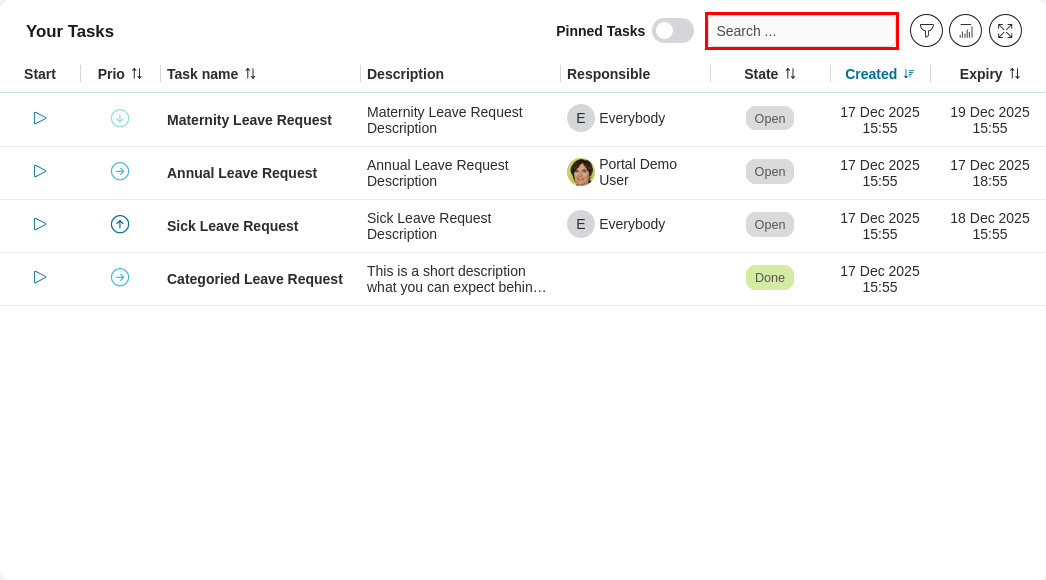
In view mode, when quick search is enabled, a text box will appear to allow you to search.
Important
You can define the scope of the quick search feature in the configuration panel.
The result of the quick search function may be affected if you apply a complex filter on the widget.
Adjust column width
In edit mode, you can adjust the width of each column directly within the widget table.
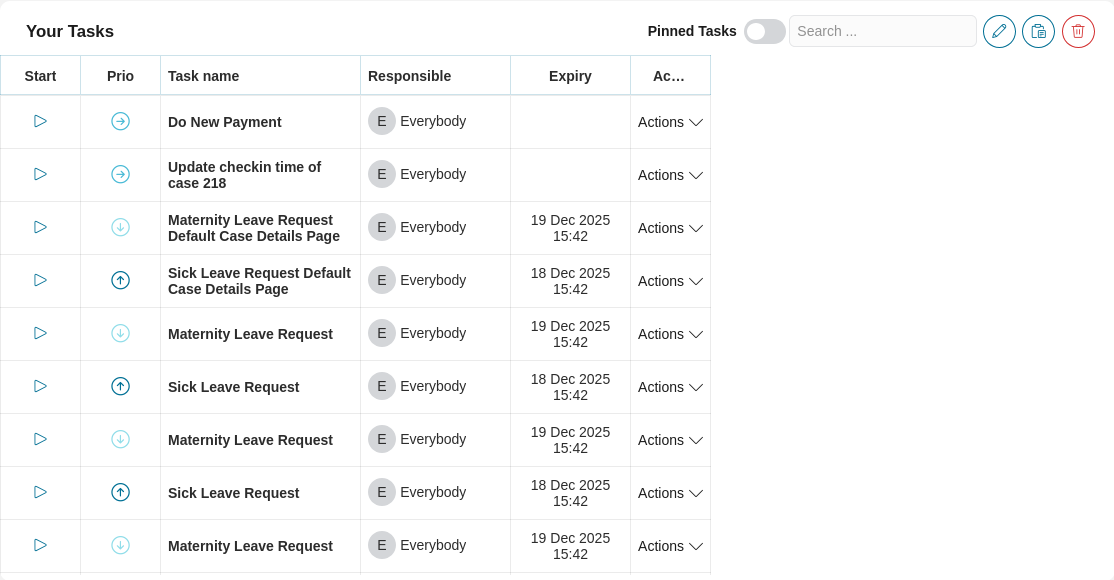
You may also notice gridlines on the table which implemented by Portal to help you adjust the column widths more efficiently.
Important
If the total width of the columns is less than the widget’s width, the Portal will automatically adjust the column widths to match the widget’s width.
Case list widget
Adding a case list widget will give you total flexibility about what you want to see and how.
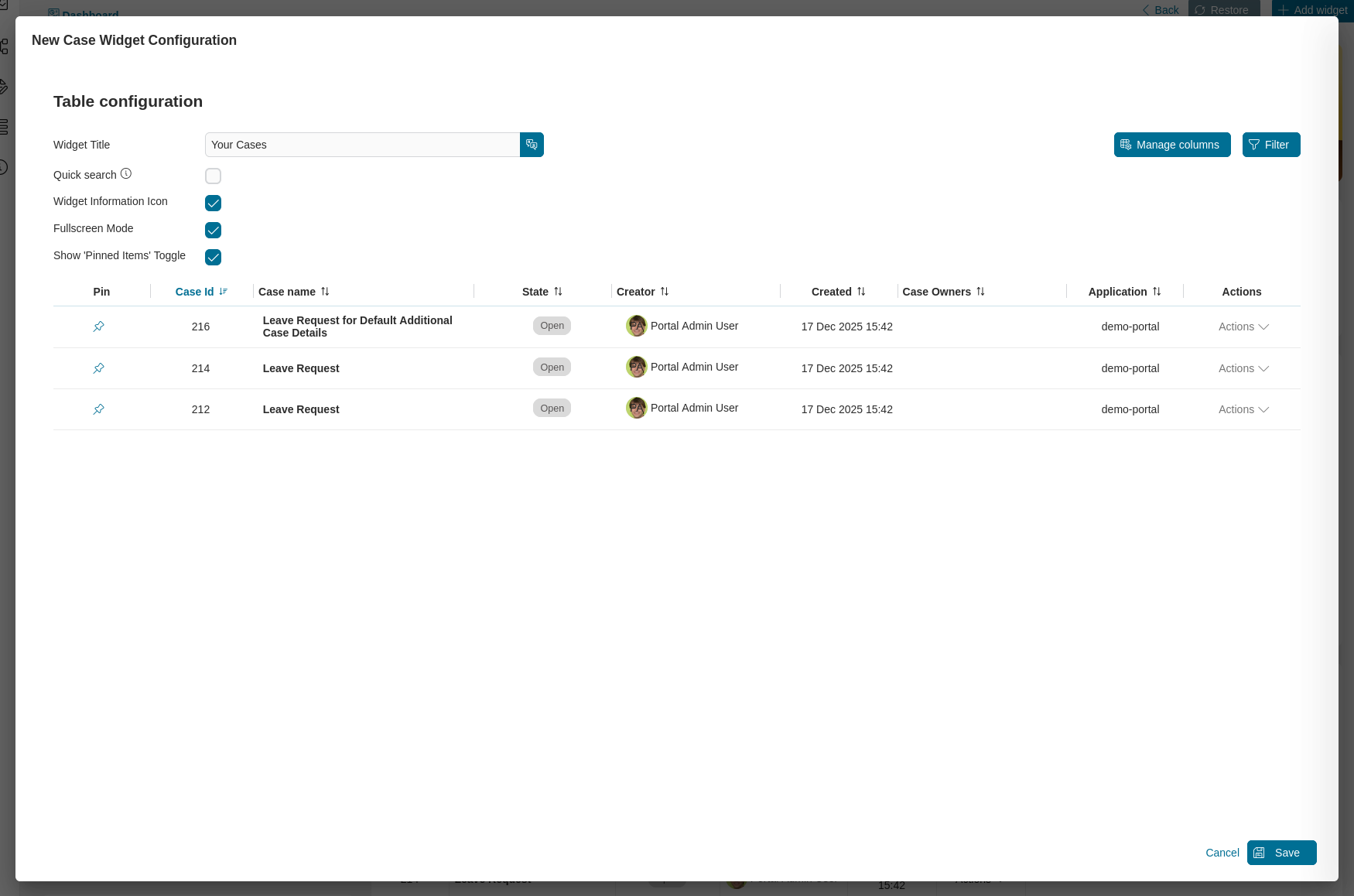
On the widget configuration panel, you can define the widget name, enable the quick search function, show or hide the widget information and fullscreen mode icons, manage columns and filters, edit the default sort order of the table columns by clicking on the column headers.
Filters panel
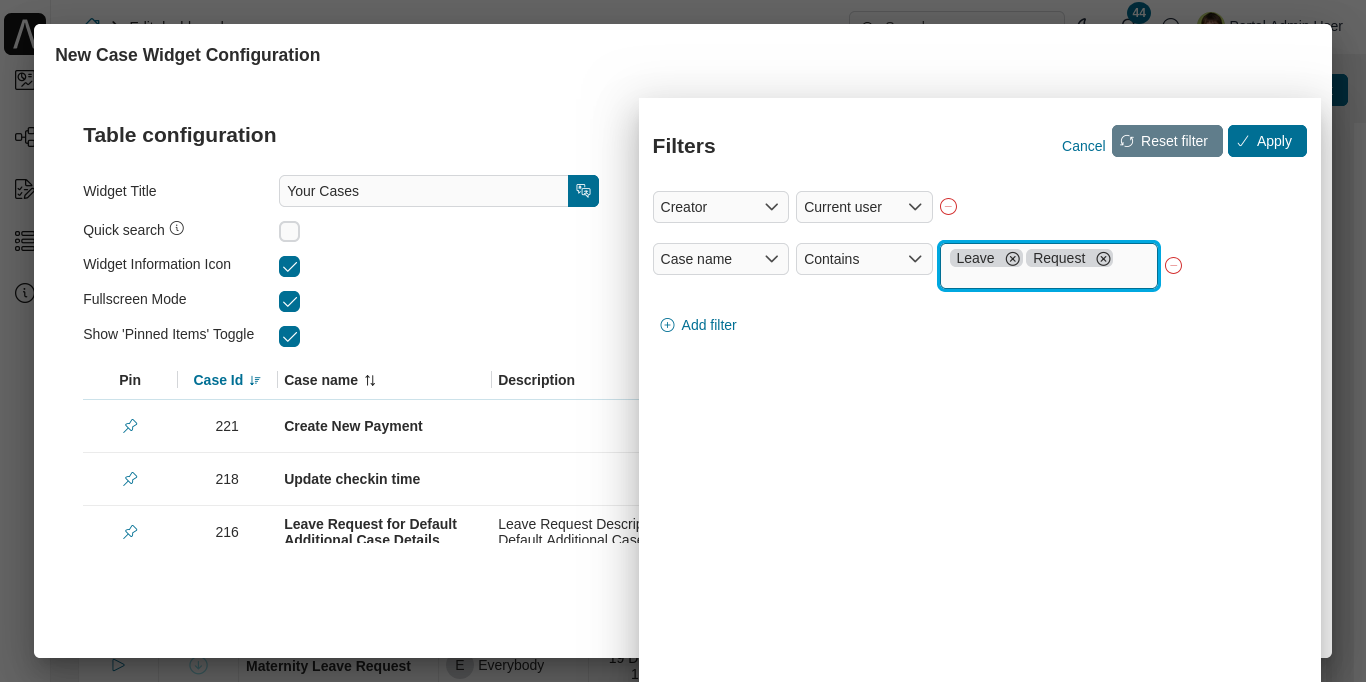
By clicking on the Filter button, you can configure the complex filter for your widget and get a preview of it by clicking on the Apply button. Please refer to Complex Filter for more details.
Column Management
By clicking on the Manage Columns button at the top right of the configuration panel. You get the following dialog:
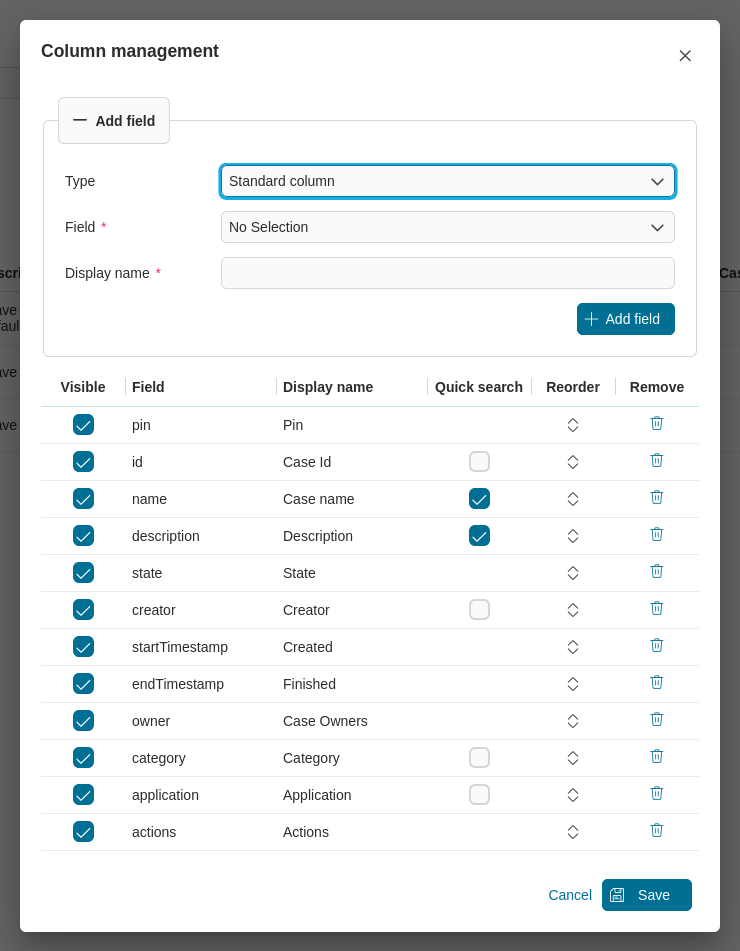
In the column management dialog, you find two sections to configure the table columns:
Add field section: add any available field to your widget table
Columns section: configure the widget table itself as follows:
Enable visibility
Enable quick search by selecting the quick search checkbox
Reorder the columns by drag and drop using the arrows
Remove columns
Important
Quick search feature is supporting these fields:
Standard fields: Id, name, description, category, creator (display name), and application.
Custom fields: fields that have type
STRINGorTEXT.Quick search is enabled for the standard field name and description by default.
Excel export
In view mode, you can export all data of the case widget by clicking on the link Export to Excel at the end of the widget information panel.
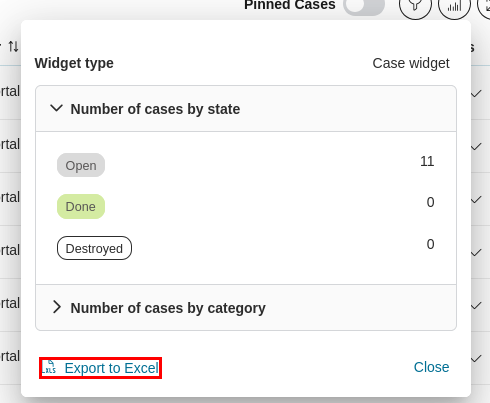
If the number of exported cases exceeds the maximum row number of the Excel file, Portal will separate data into multiple Excel files and put them into a single zip file.
Quick search
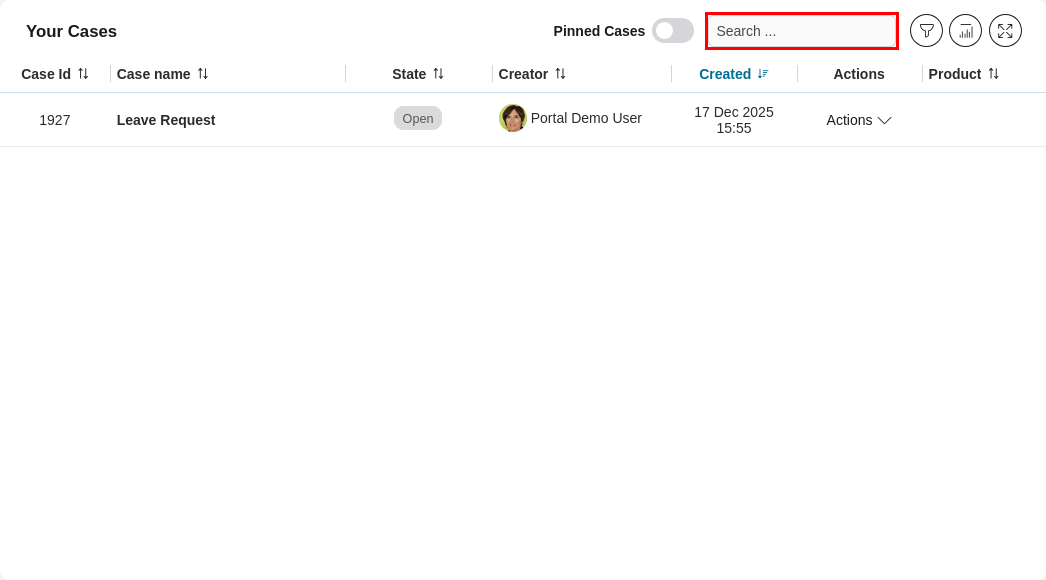
In view mode, when quick search is enabled, a text box will appear to allow you to search.
Important
You can define the scope of the quick search feature in the configuration panel.
The result of the quick search function may be affected if you apply a complex filter on the widget.
Adjust column width
In edit mode, you can adjust the width of each column directly within the widget table.
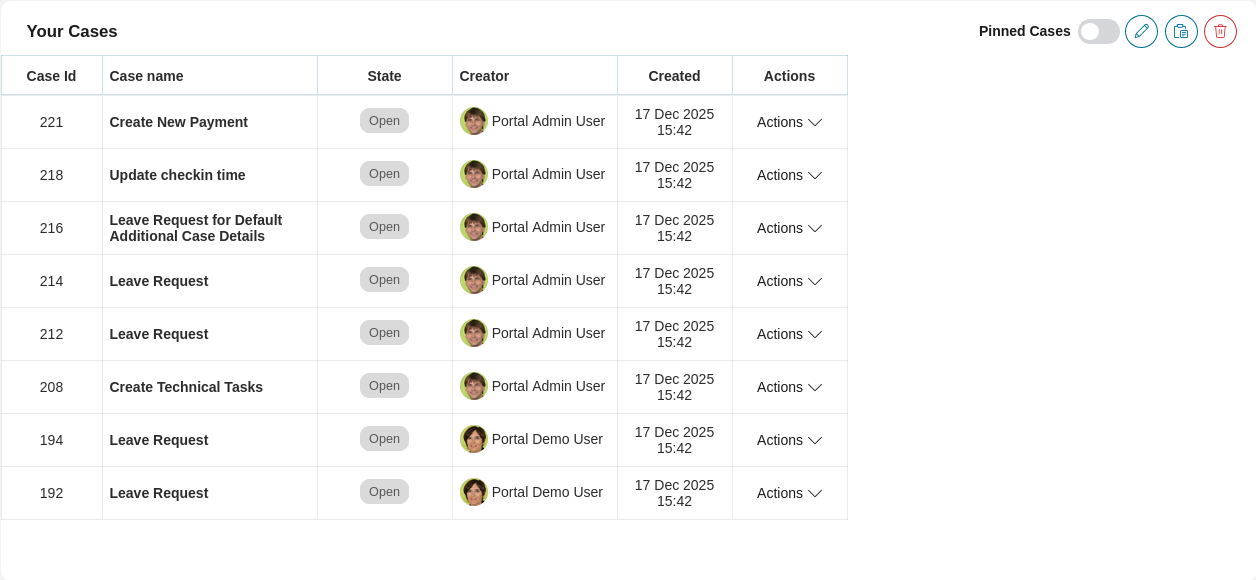
You may also notice gridlines on the table which implemented by Portal to help you adjust the column widths more efficiently.
Important
If the total width of the columns is less than the widget’s width, the Portal will automatically adjust the column widths to match the widget’s width.
Process list widget
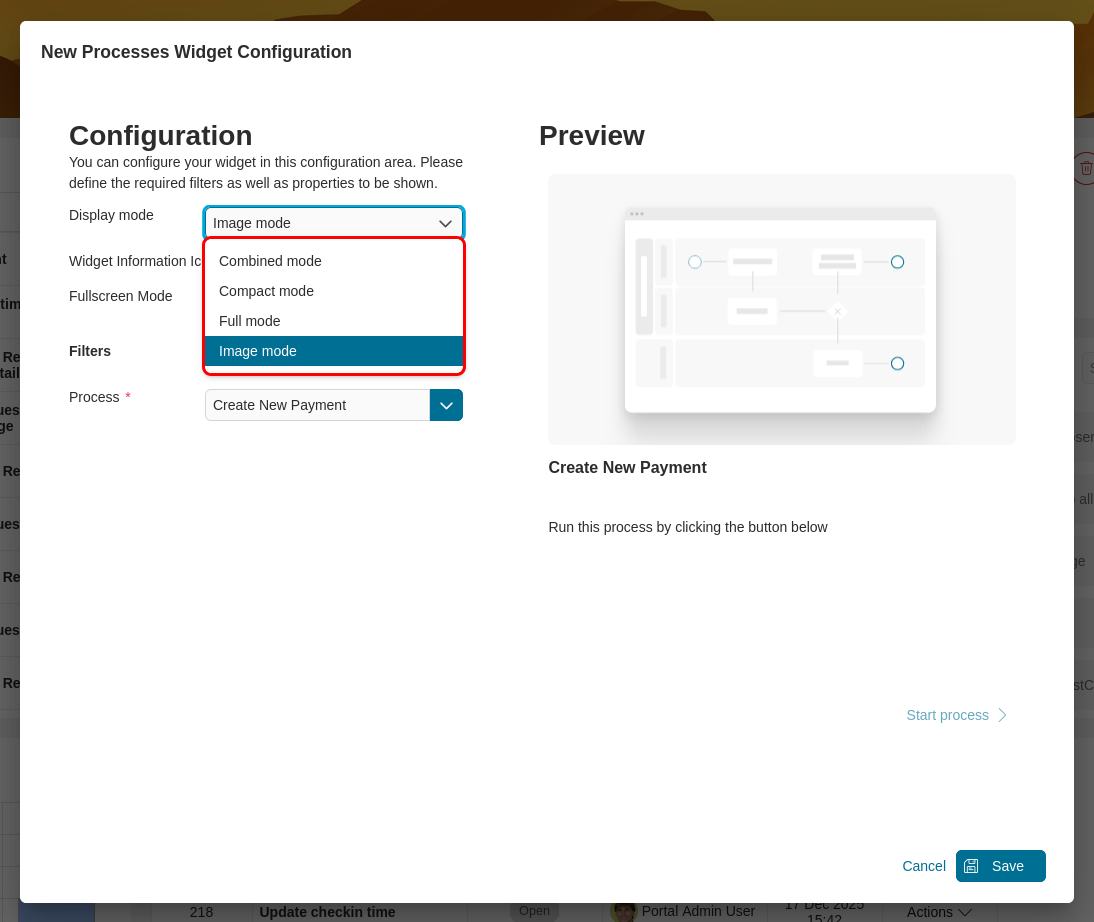
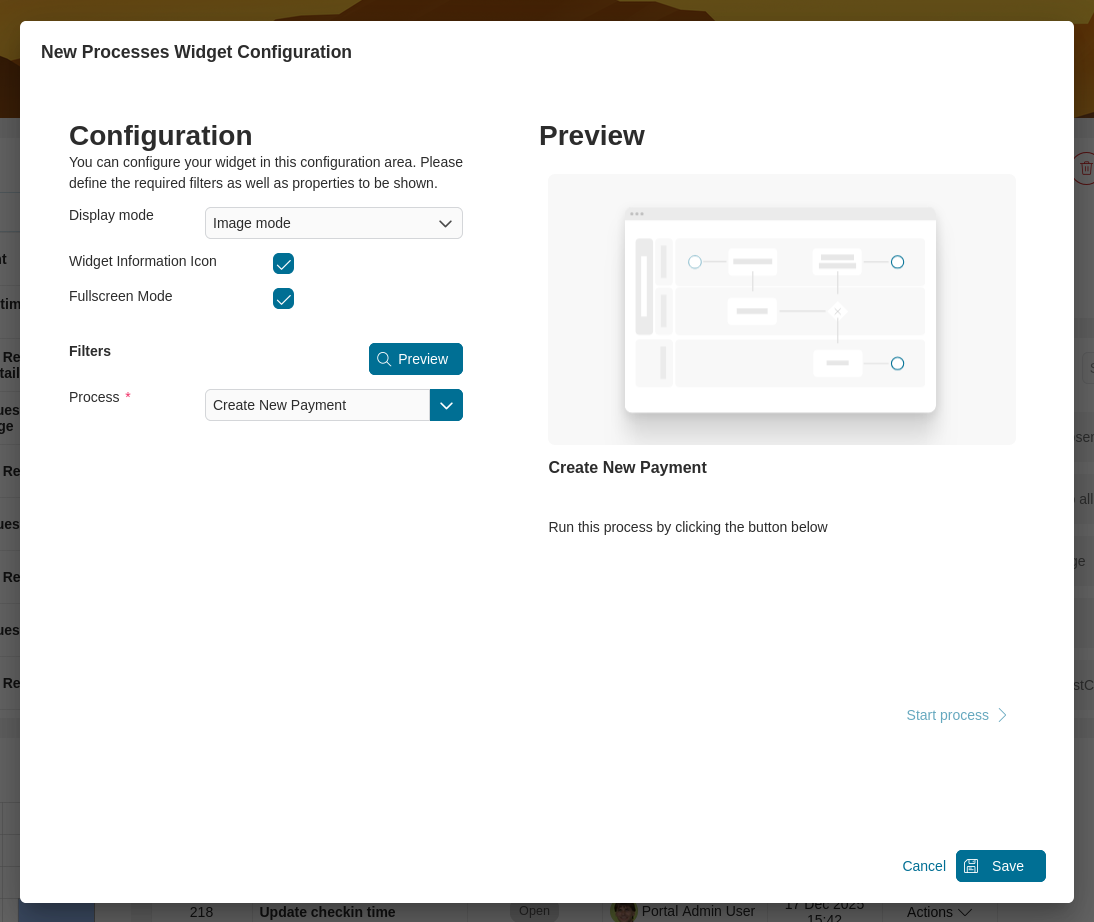
There are four process widget modes available:
Combined mode
Compact mode
Full mode
Image mode
In the widget configuration, you can choose the display mode, show or hide widget information and fullscreen mode icons.
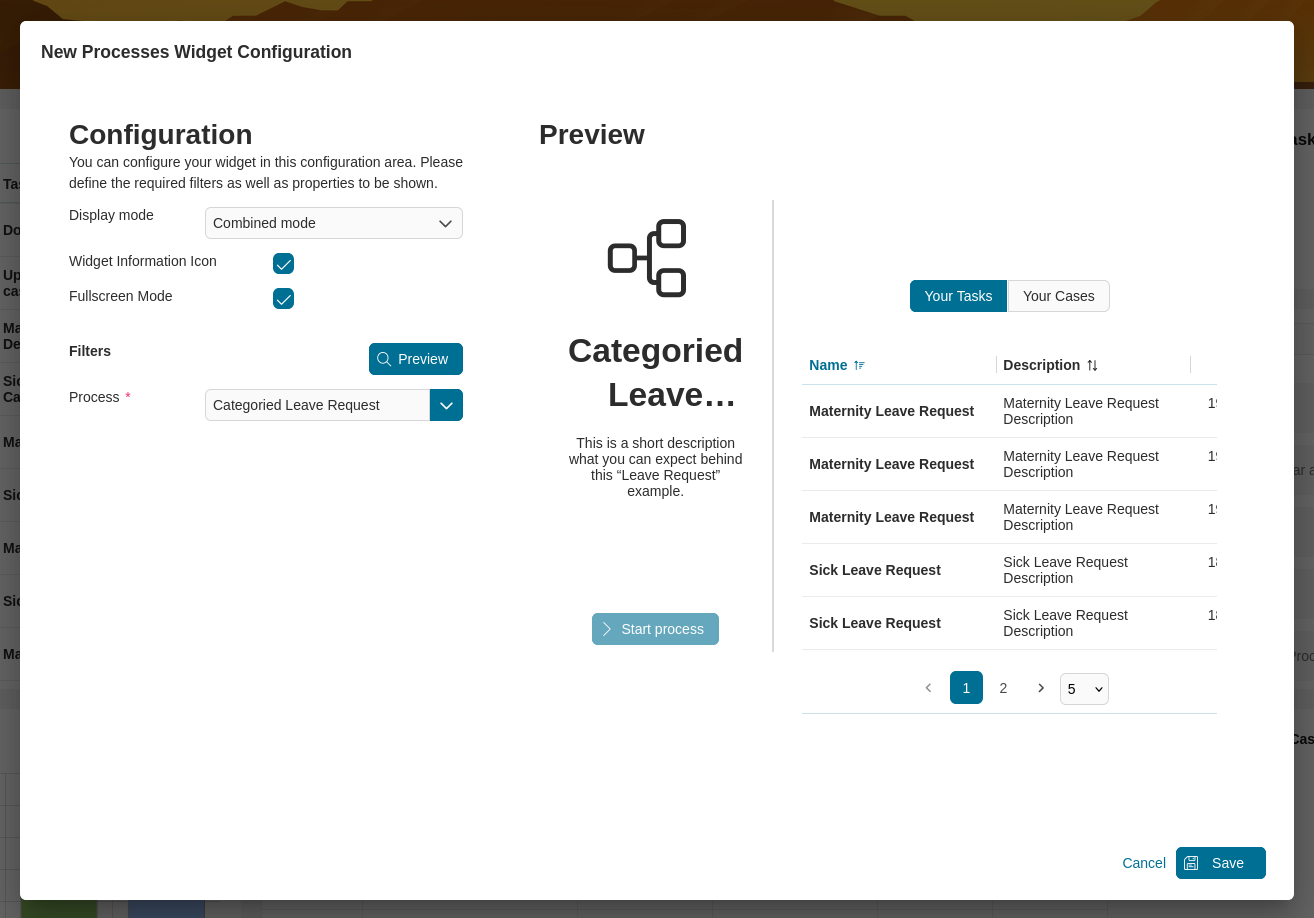
Combined mode
This widget displays the selected process start and all related cases and tasks combined in one single widget. This widget configuration will help you find tasks specifically to a particular process:
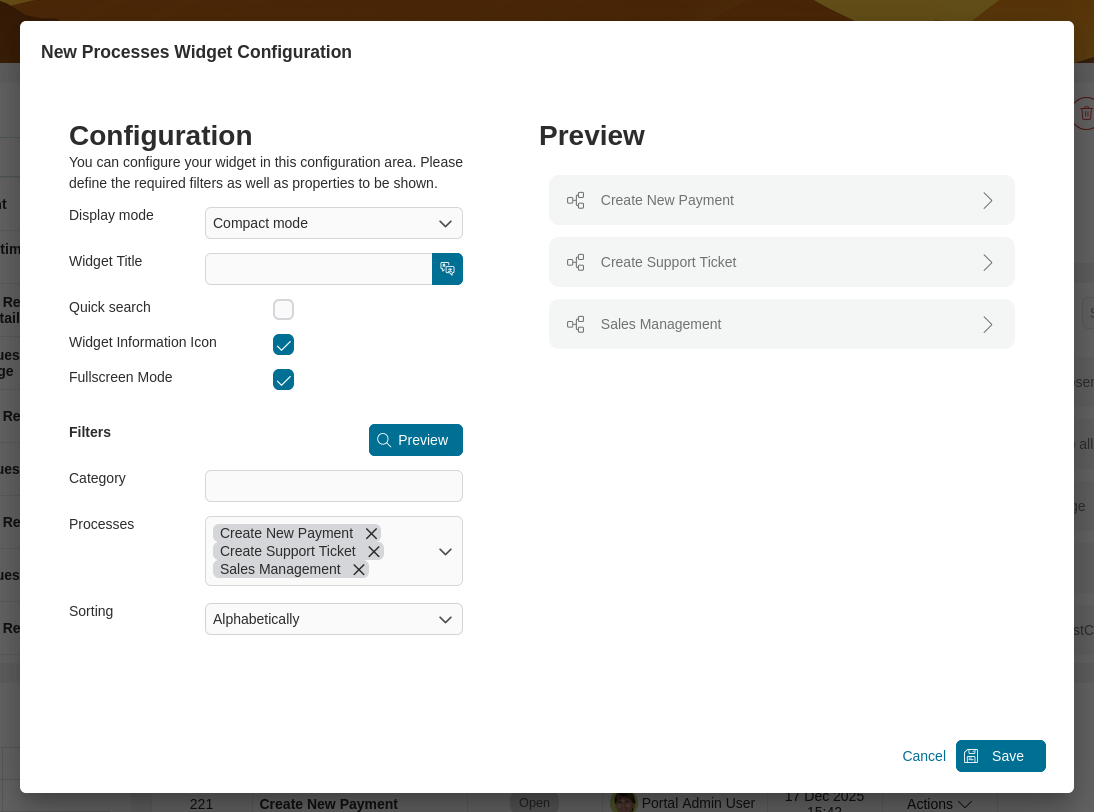
Compact mode
This widget displays a list of all selected process starts. You can sort your processes by index, alphabetical order, most used or custom order. You can change your custom order by drag and drop the processes and enable quick search by selecting the quick search checkbox.
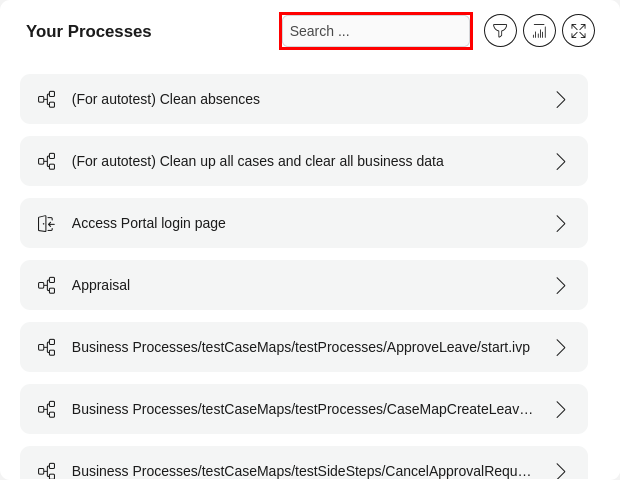
In view mode, when quick search function is enabled, a text box will appear to allow you to search.
Important
Quick search function can only be used when process widget mode is
Compact Mode.Quick search function supports searching by
process name.
Full mode
You can create a widget with a card layout including an icon for a single process.
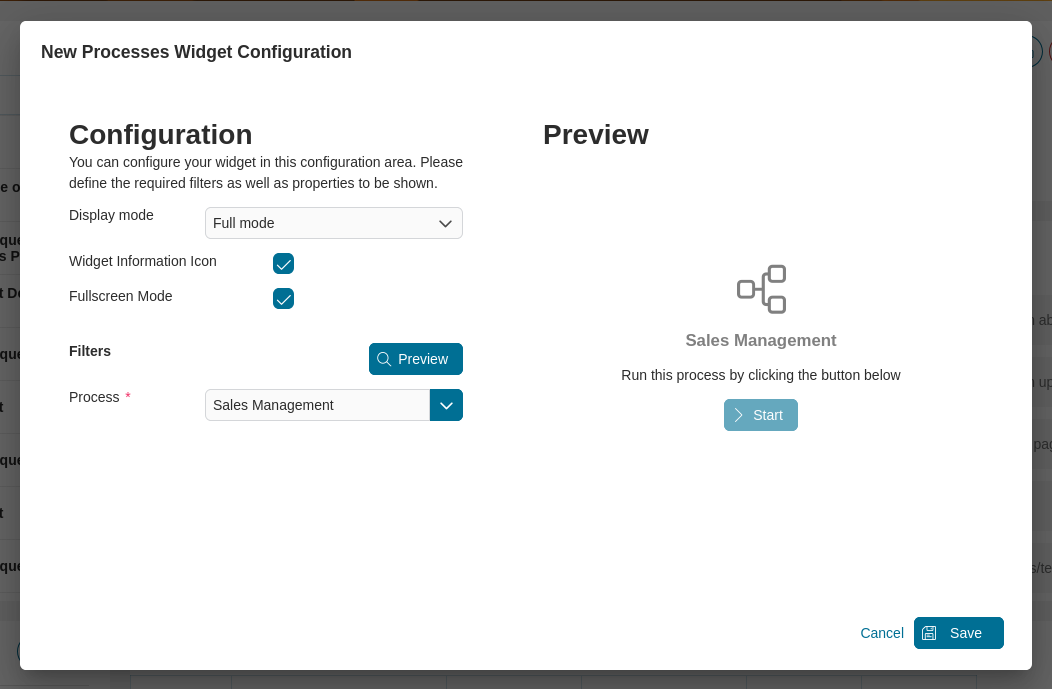
Image mode
You can create a widget with a card layout, including a nice picture for a single process.
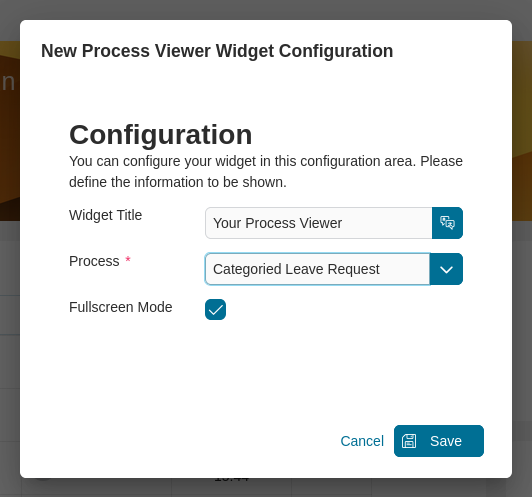
Process viewer widget
You can define the widget name and process to be displayed.
Configuration of a process viewer widget:
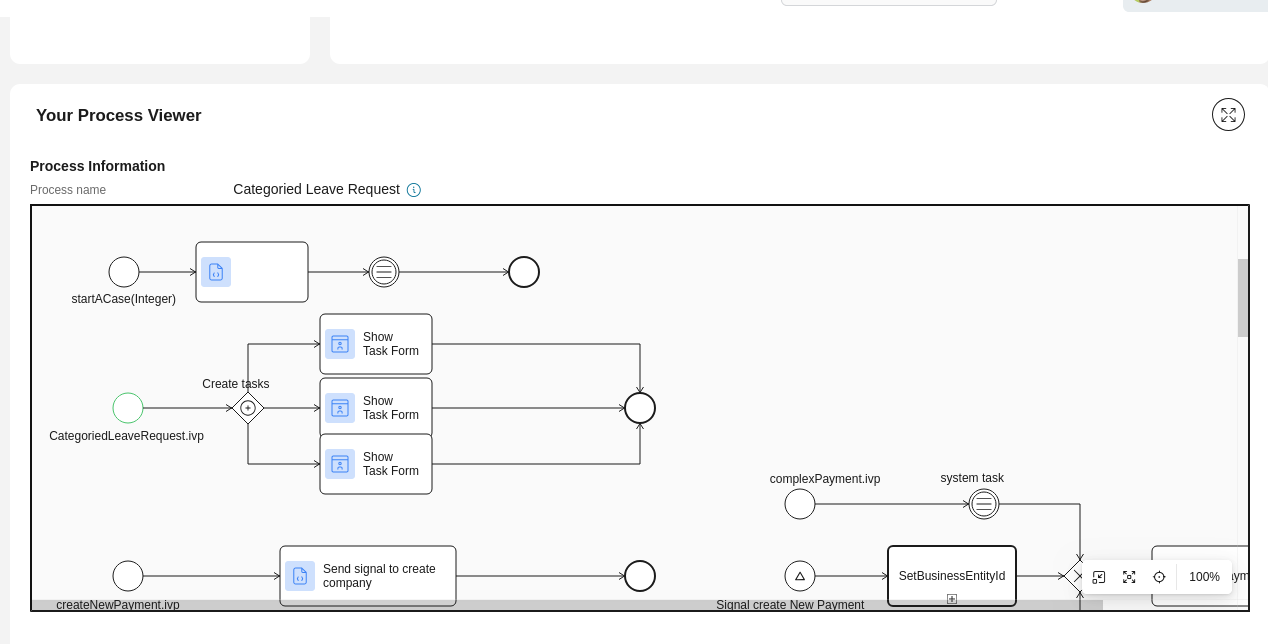
This is sample output of the widget configured above:
Statistic chart widget
Portal has deprecated the legacy statistic chart widget and now offers a wide range of new standard statistical charts. For more information, please refer to the Statistic Chart section.
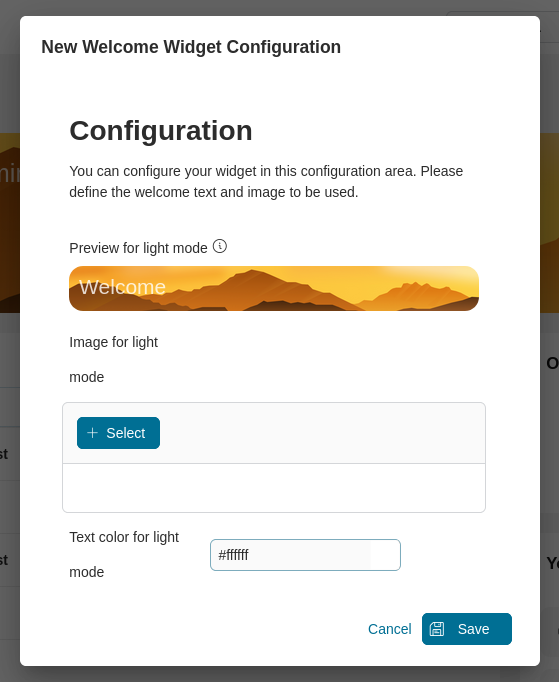
Welcome widget
You can define a welcome widget with background images for both light and dark mode and a welcome text.
News feed widget
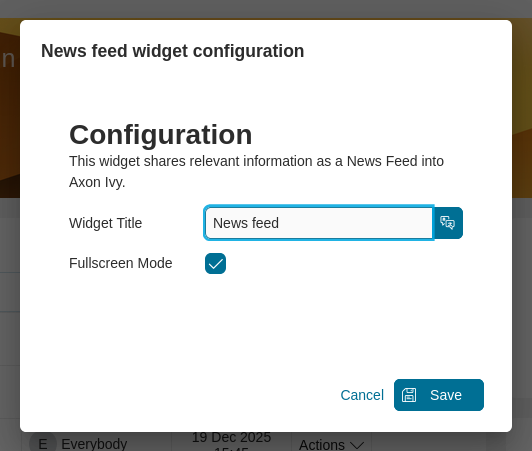
You can define a news feed widget to display all news entries to the user
Configuration of the news feed widget:
This is sample output of the widget configured above:
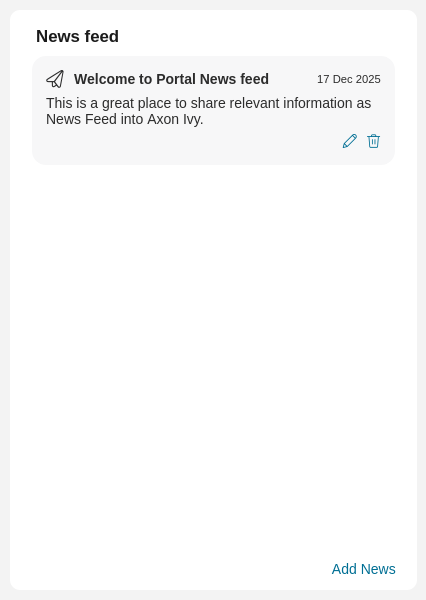
Manage news feed content
Note
Grant permission 🔑NewsManagement to allow a user to manage the content of the news feed.
If the user has permission, then the user can:
Add news message: add a new entry for the news feed by clicking Add News button.
Edit news message: edit an existing entry for the list by clicking on the
 icon in the lower right corner of each entry.
Delete news message: delete entry directly from the list, by clicking on the
 icon in the lower right corner of each entry.
The Manage News dialog.
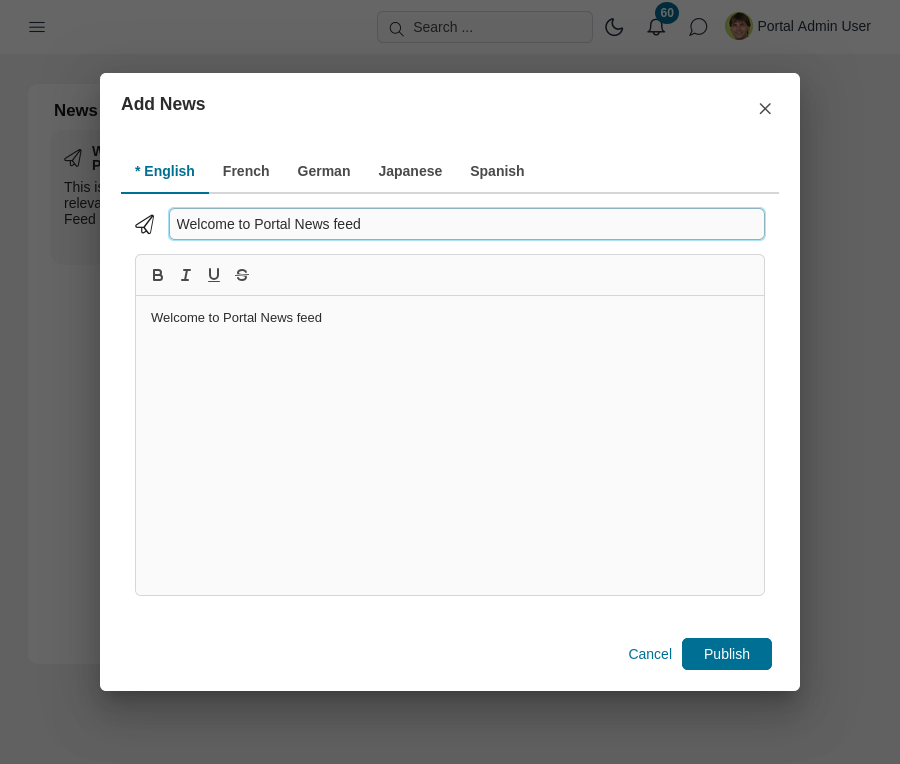
In manage news, the user can:
Create one entry in multiple languages. When creating the entry, the user can switch between the available languages with a click on the tab view header.
Translate the title by clicking on the input label. Translate the content by clicking on the
 icon. To enable the translation, please prefer to HowTo: Enable the Translation Service
Choose an icon for the news by clicking directly on the icon, the Icon browser browser will be shown.
Define the news title. Its length is limited to 200 characters.
Provide news content, i.e., the main information for the news feed. The content is limited to a maximum of 1,000 characters.
After setting up everything, simply click on the Share this dashboard link at the bottom of your dashboard to share it with colleagues.
External page widget
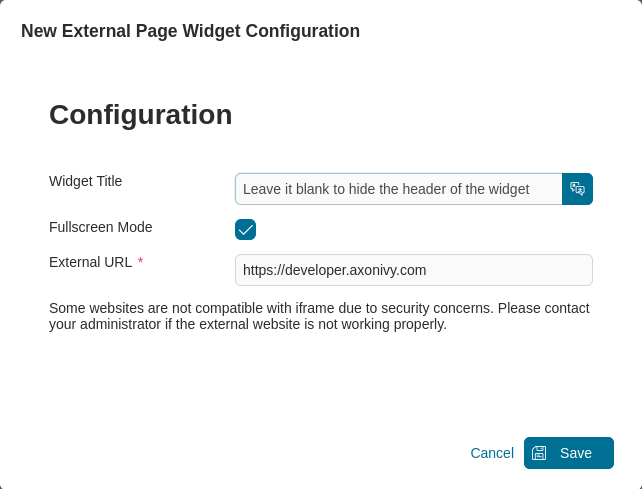
You enter an URL to embed an external webpage into the Portal dashboard.
Notifications widget
You can define a Notifications widget to display all Notifications based on your notification settings.
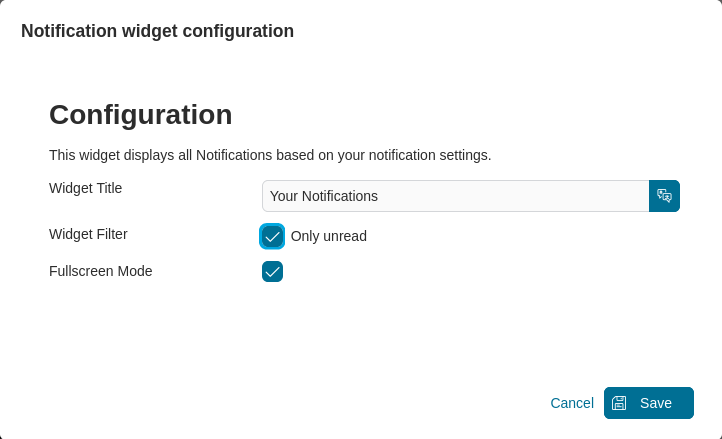
This is the sample output of the widget configured above:
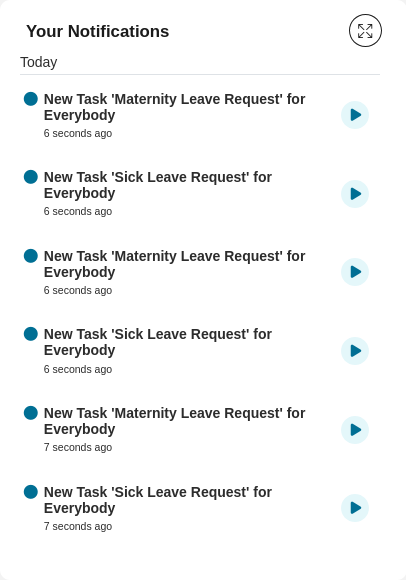
Navigation dashboard widget
You can configure a navigation dashboard widget that lets users quickly access a target dashboard with a click.
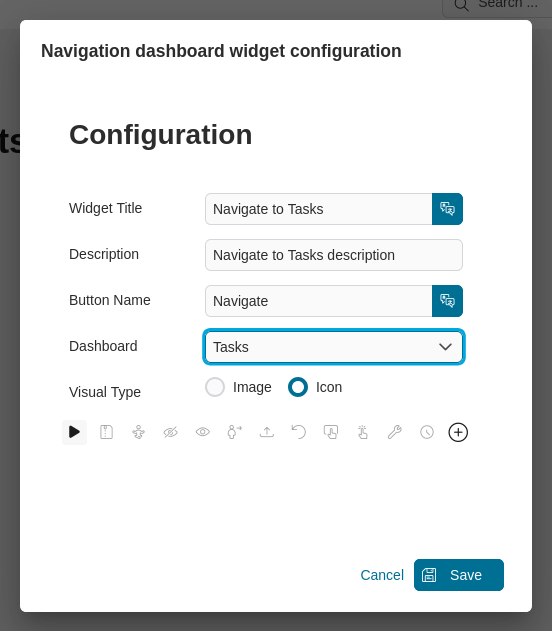
This is the sample output of the widget configured above:
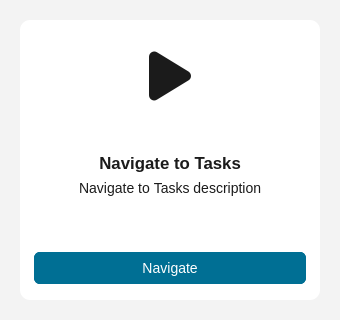
Important
If the user does not have the permission to access the dashboard, the button is disabled.
Clone a widget
Clone a widget from existing dashboard
When editing a dashboard, you can clone a widget from another dashboard by opening the Add a widget dialog by press on the + Add widget button.
Once the dialog opens, click the Clone widget button at the top.
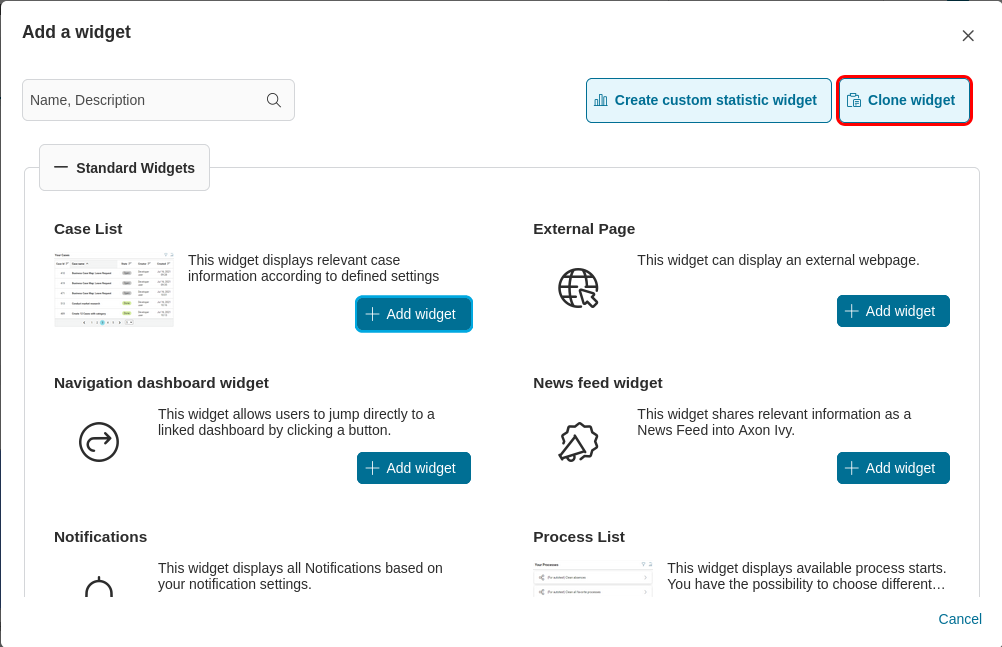
This will open the Clone widget from dialog. Select the dashboard that contains the widget you want to clone, then choose the specific widget.
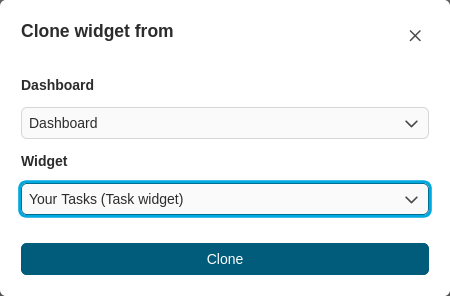
After selecting the widget, click the Clone button to add it to the current dashboard.
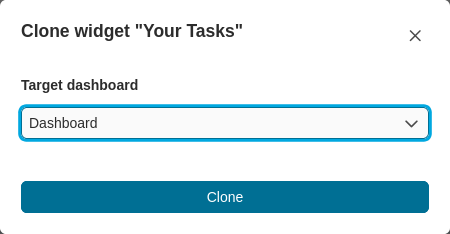
Clone a widget to another dashboard
The Portal provides another convenient way to clone widgets between dashboards. To clone a specific widget, click the Copy icon on the widget header.
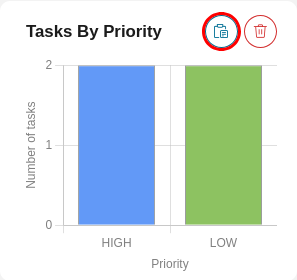
For certain widget types, such as the Welcome widget, you can find the Clone option in the context menu.
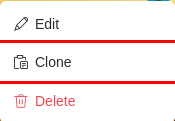
After selecting the Clone option, the Clone widget dialog will appear. Choose the target dashboard where you want to copy the widget, then click the Clone button to complete the process.