Forgot Password
Important
The Forgot Password feature must be enabled by an administrator in the Portal configuration before the “Forgot my password” link is shown on the login screen. If you do not see the link, contact your Portal administrator.
Note
External identity providers (e.g. Microsoft Entra ID (Azure AD), Active Directory, LDAP) manage user credentials themselves. In those setups Portal does not change passwords; the link may be hidden automatically or should be disabled. Use the provider’s own self-service password reset pages.
You find the “Forgot my password” link at the bottom right of the login page.
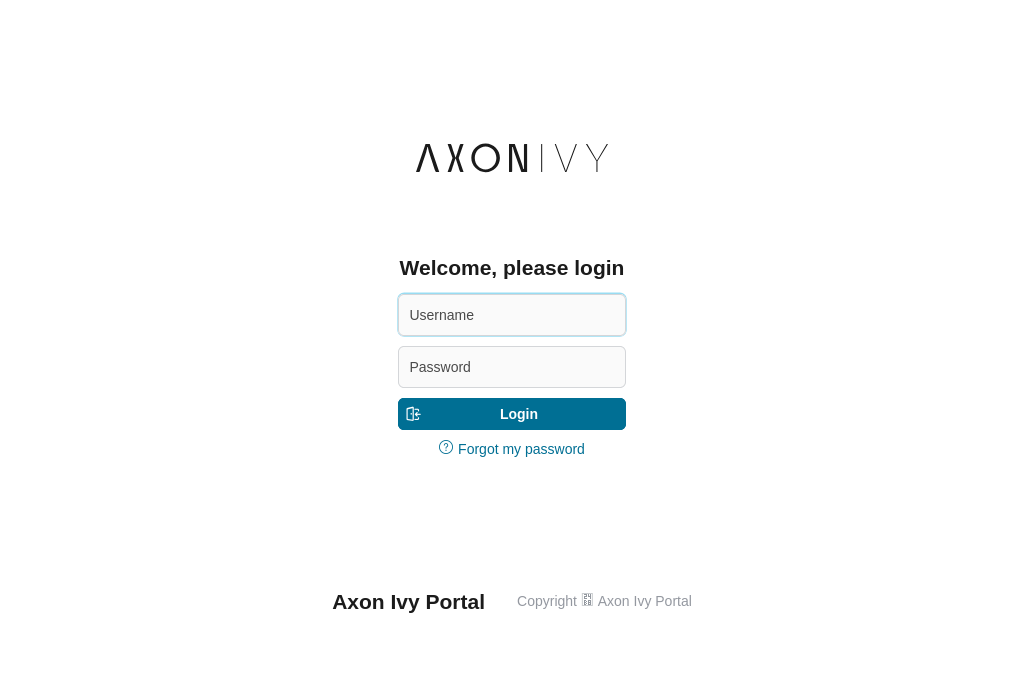
To reset your password, click on Forgot my password. You will see the page below.
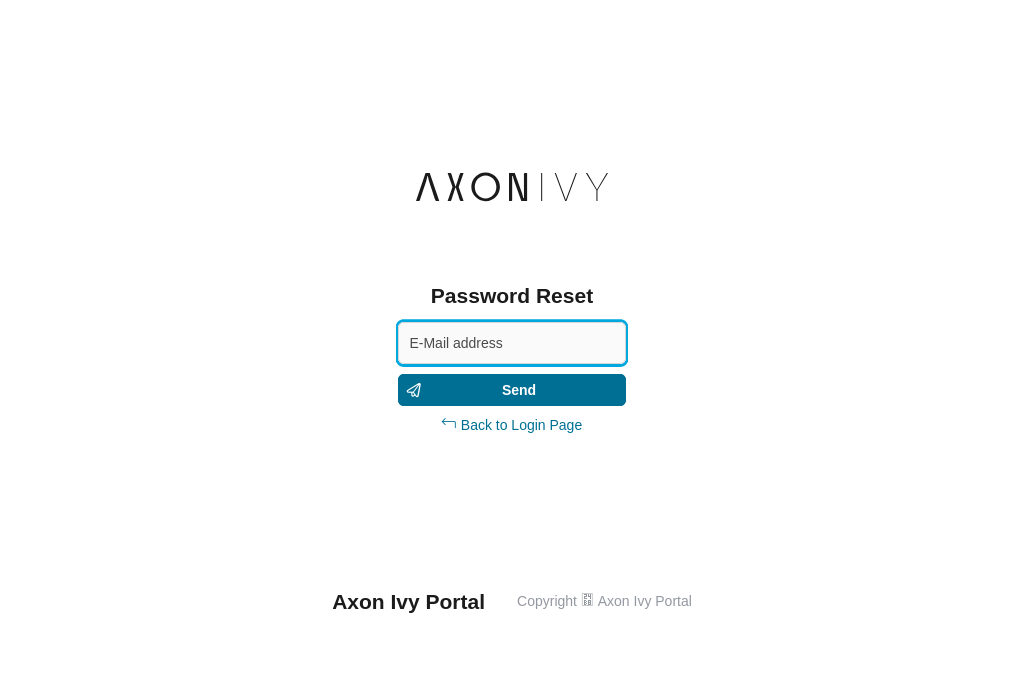
Input your registered email address and click on Send. If successful, an email with a link will be sent to this email address. After clicking on this link, you will see this page:
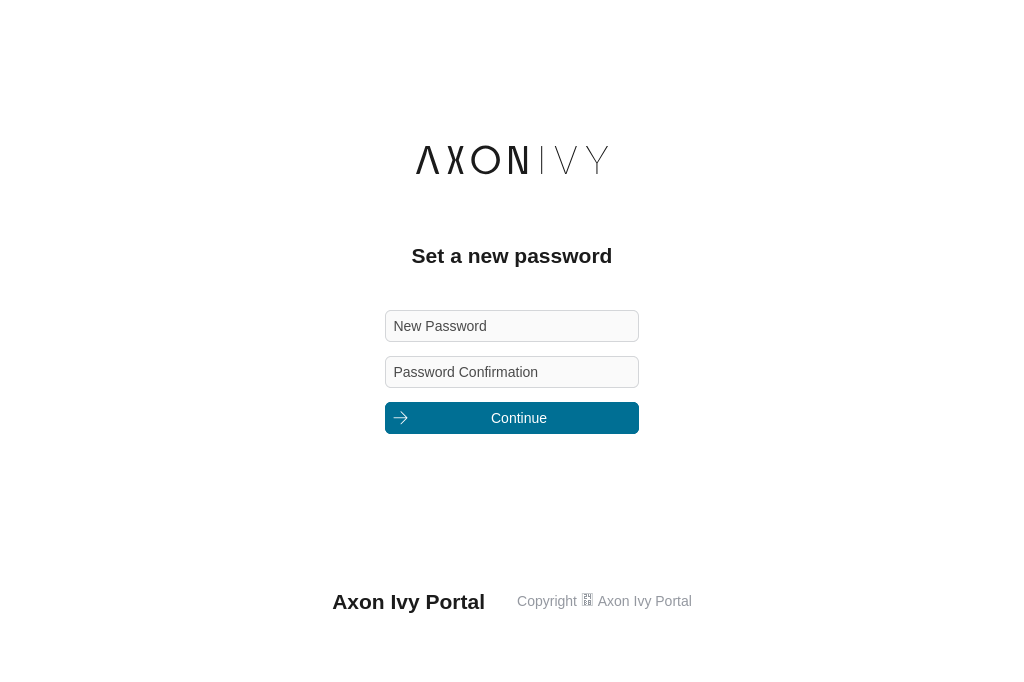
Input your new password and the password confirmation, then click on Continue. If successful, you will see this page:
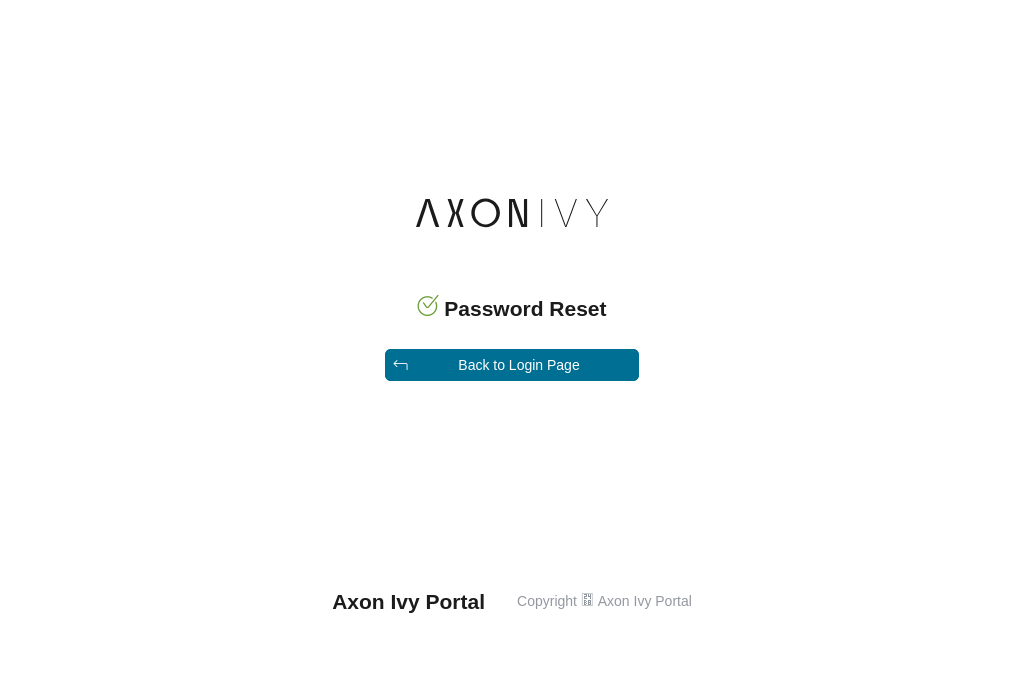
Click on Back To Login Page and log in again with your account and the new password.
Tip
For developers: This feature can be customized (e.g., custom email templates, validation rules). See Customize Forgot Password in the Developer Guide.