Configure Task Widget
The task widget displays an interactive, customizable list of tasks with advanced filtering, sorting, and search capabilities. It supports custom columns, pre-configured filters, quick search across multiple fields, and multi-language support for custom string fields via CMS.
Define Task Widget
The task widget displays tasks with full control over columns, filters, sorting, and layout. Refer to Task List Widget for widget behavior details.
Configuration Example
Below is a sample JSON definition of a task widget in the Portal dashboard:
{
   "type": "task",
   "id": "task-widget",
   "names": [
      {
         "locale": "en",
         "value": "My Tasks"
      },
      {
         "locale": "de",
         "value": "Meine Aufgaben"
      }
   ],
   "layout": {
      "x": 0,
      "y": 0,
      "w": 10,
      "h": 9,
      "style": "color: red;",
      "styleClass": "your-widget-class"
   },
   "sortField": "name",
   "sortDescending": false,
   "rowsPerPage": 20,
   "showWidgetInfo": true,
   "showFullscreenMode": true,
   "filterTasksByCurrentCaseOwner": false,
   "canWorkOn": false,
   "enableQuickSearch": true,
   "columns": [
      {
         "field": "start"
      },
      {
         "field": "priority",
         "visible": "true"
      },
      {
         "field": "id"
      },
      {
         "field": "name",
         "quickSearch": "true"
      },
      {
         "field": "state",
         "headers": [
            {
               "locale": "en",
               "value": "State"
            },
            {
               "locale": "de",
               "value": "Status"
            }
         ]
      },
      {
         "field": "startTimestamp"
      },
      {
         "field": "actions"
      }
   ],
   "filters": [
      {
         "field": "state",
         "values": ["OPEN", "IN_PROGRESS"],
         "operator": "in",
         "type": "standard"
      }
   ]
}
JSON Configuration Reference
Required Properties
type(string)Widget type. Must be
"task"for task widgetid(string)Unique identifier for the widget
names(array)Multilingual display names. Each entry:
{"locale": "en", "value": "Name"}layout(object)Widget position and size (see Layout Properties below)
columns(array)Column configurations (see Columns section below)
Layout Properties
x(number)Column position in 12-column grid (0-11). CSS left =
x / 12 * 100%y(number)Row position. CSS top =
y / 12 * 100%w(number)Width in grid columns (1-12). Pixel width =
60 * w + 20 * (w - 1)h(number)Height in grid rows (min 5). Pixel height =
60 * h + 20 * (h - 1)styleClass(string, optional)CSS classes for custom styling
style(string, optional)Inline CSS styles
Tip
Recommended task widget size: Width 8-12 columns, Height 8-12 rows for optimal table display with pagination.
Display & Behavior Properties
sortField(string, optional)Default column for sorting (e.g.,
"name","priority","startTimestamp")sortDescending(boolean, default:false)Sort direction.
false= ascending,true= descendingrowsPerPage(number, default:10)Number of tasks displayed per page
showWidgetInfo(boolean, default:true)Show/hide widget information icon
showFullscreenMode(boolean, default:true)Show/hide fullscreen mode icon
enableQuickSearch(boolean, default:false)Enable quick search text box
canWorkOn(boolean, default:false)Filter only tasks the current user can work on
filterTasksByCurrentCaseOwner(boolean, default:false)Filter only tasks where current user is case owner (requires
Portal.Cases.EnableOwnersetting)isTopMenu(boolean, default:false)true= top-level nav item,false= under Dashboard menu
Columns Configuration
Each column object in the columns array:
field(string, required)Column field name (see Standard Columns below)
visible(string, default:"true")Column visibility:
"true"or"false"quickSearch(string, default:"false")Include in quick search:
"true"or"false"headers(array, optional)Multilingual column headers:
[{"locale": "en", "value": "Header"}]type(string, default:"STANDARD")Column type:
"STANDARD"or"CUSTOM"style(string, optional)Inline CSS for custom columns (e.g.,
"width: 110px")
Standard Column Fields
start- Start button to begin task executionPin- Pin button for taskpriority- Task priorityid- Task IDname- Task namedescription- Task descriptionactivator- Task activatorstate- Task business statestartTimestamp- Creation date and timeendTimestamp- End date and timeexpiryTimestamp- Expiry date and timeapplication- Application nameactions- Action buttons (details, reset, delegate, reserve, destroy, etc.)
Filters Configuration
The filters array defines pre-configured filter conditions:
field(string)Column field name to filter
values(array)Filter values (format depends on field type)
operator(string)Filter operator (see Filter Conditions section)
type(string)"standard"or"custom"
Note
For detailed filter configuration, see the Filter Conditions section below.
Custom Columns
Axon Ivy supports custom fields for tasks. You can show them in the Task widget as a column.
You can predefine which column to show, and other attributes such as filter, format, and style. Below is a standard JSON of a custom column.
{
   ...

   "columns": [
         {
            "type": "CUSTOM",
            "field": "HIDE",
            "style": "width: 110px"
         }
   ]
}
Besides attributes explained in the previous section, a custom column has two differences:
type: type of the widget column. There are two options:STANDARDandCUSTOM.
field: this attribute is the name of the task’s custom field which will be used to get data for the column.
Important
Portal only displays custom fields declared in the custom-fields.yaml file.
Refer to Custom Fields Meta Information for more information.
Filter Conditions
You can predefine filter conditions for most columns of the task widget. Each column has different requirements: some accept only a list, some accept only a string, and others require a string in a specific format, such as date-time. Please refer to Complex Filter for more details.
Base structure of filter json:
{
   ...

   "columns" : [
      {
         "field" : "description"
      }
   ],
   "filters" : [
         {
            "field" : "description",
            "values" : [ "Leave Request" ],
            "operator" : "contains",
            "type" : "standard"
         }
   ]
}
field: filter field name corresponding with column name
values: filter value, could be a list, a string or a number
operator: filter operator, operators can be difference depend on each field type.
String column: is, is_not, empty, not_empty, contains, not_contains, start_with, not_start_with, end_with, not_end_with
Number column: between, not_between, empty, not_empty, equal, not_equal, less, less_or_equal, greater, greater_or_equal
Date column: today, yesterday, is, is_not, before, after, between, not_between, current, last, next, empty, not_empty
type:standardfor standard column orcustomfor custom columnDate type additional field:
periodType: string value. E.g.:YEAR,MONTH,WEEK,DAY
from: string value. E.g.: “04/04/2024”
to: string value. E.g.: “05/05/2024”
There are additional fields dependent on the operator and many specific filters for each field type. Below is the list of filterable columns and their corresponding filter conditions.
Tip
We encourage utilizing dashboard configurations to edit widgets and then leveraging the export dashboard feature to ensure better expectations when customizing these widgets.
Standard Column:
activator{ ... "columns": [ { "field": "activator" } ], "filters": [ { "field": "activator", "values": [ "backendDev2" ], "operator": "not_in", "type": "standard" } ] }This column only accepts a list of role names or usernames as filter conditions for the task’s responsible username. The available filter operators are
in,not_inandcurrent_user. Thecurrent_useroperator does not require value field.
name{ ... "columns": [ { "field": "name" } ], "filters" : [ { "field": "name", "values": [ "Task", "Leave Request" ], "operator": "contains", "type": "standard" } ] }This column accepts all operators available for String column. Additionally, it accepts
valueas a list of string.
description{ ... "columns": [ { "field": "description" } ], "filters": [ { "field": "description", "values": [ "leave request" ], "operator": "contains", "type": "standard" } ] }This column accepts all operators available for String column. Additionally, it accepts
valueas a list of string.
priority{ ... "columns": [ { "field": "priority" } ], "filters": [ { "field": "priority", "values": [ "HIGH", "NORMAL", "LOW" ], "operator": "in", "type": "standard" } ] }This column only accepts a list of priorities’ names as the filter condition. The available filter operator is
in.Refer to Task Priority for available task priorities.
state{ ... "columns": [ { "field": "state" }, ], "filters": [ { "field": "state", "value": [ "DELAYED", "DESTROYED" ], "operator" : "in", "type" : "standard" } ] }This column only accepts a list of task business state names as its filter condition. The available filter operator is
in.Refer to Task Business States for available task business states.
startTimestampandexpiryTimestamp: created date and finished date of the Task{ ... "columns": [ { "field": "startTimestamp" } ], "filters" : [ { "field": "startTimestamp", "operator": "today", "type" : "standard" }, { "field" : "startTimestamp", "from" : "04/04/2024", "operator" : "before", "type" : "standard" }, { "field" : "expiryTimestamp", "from" : "04/04/2024", "to" : "04/06/2024", "operator" : "between", "type" : "standard" }, { "field" : "expiryTimestamp", "operator" : "last", "periods" : 1, "periodType" : "YEAR", "type" : "standard" } ] }These columns accept all operators available for Date column. Fields may vary depending on the operator. The JSON example above covers most use cases for the Date field. Acceptable date formats:
dd.MM.yyyy,dd.MM.yyyy HH:mm,MM/dd/yyyyandMM/dd/yyyy HH:mm.
application{ ... "columns": [ { "field": "application" } ], "filters": [ { "field" : "application", "values" : [ "designer" ], "operator" : "in", "type" : "standard" } ] }
Custom Field Column :
Custom Columns are using the same operator as Standard Column.
typefield must becustomfor Custom Field andcustom_casefor Custom Case Field.{ ... "columns": [ { "field" : "CustomerName" } ], "filters": [ { "field" : "CustomerName", "operator" : "not_empty", "type" : "custom" } ] }
Quick Search
The quick search is a useful function for users to quickly search the tasks within the task widget. The configuration of the quick search has two attributes:
enableQuickSearch: enables the quick search feature for the widget.
quickSearch: indicates that a column is searchable using the quick search feature.
If you set the enableQuickSearch attribute to false, the quick search feature will be disabled,
regardless of the quickSearch attribute’s value.
Conversely, if you set the enableQuickSearch attribute to true, the quick search feature will
search within the values of all columns that have the quickSearch attribute set to true.
If you haven’t assigned the quickSearch attribute to any column in the task widget,
the quick search feature will default to searching the name and description fields.
Below are the definition of these attributes:
enableQuickSearch: to enable/disable the quick search feature, set theenableQuickSearchfield of the Task widget as shown below.{ ... "type": "task", "id": "task_98ae4fc1c83f4f22be5244c8027ecf40" ... "enableQuickSearch": "true", ... }Valid values:
true: show the quick search text box.
false: hide the quick search text box.
not defined: hide the quick search text box.
quickSearch: to choose which columns can be searched by the quick search feature, set thequickSearchfield for each column as shown below.{ ... "type": "task", "id": "task_98ae4fc1c83f4f22be5244c8027ecf40" ... "columns": [ { "field": "id", "quickSearch": "false" }, ... ] ... }Valid values:
true: apply quick search for this column.
false: do not apply quick search for this column.
not defined: thenameanddescriptioncolumns aretrue, other columns arefalseby default.
Multi-Language Support for Custom String Fields
With the Multi-Language Support for Custom Fields feature, we enable the provision of values in a custom field in multiple languages. The field content is displayed based on the language selected in the custom field.
Important
Portal only supports Multi-Language for Custom Fields with TYPE: STRING.
Enabling Multi-Language Support
To allow a custom field to retrieve multilingual values from the CMS, set the HasCmsValue attribute to true in the corresponding custom-field yaml file configuration.
Otherwise, the logic remains unchanged, and the custom field uses the static value.
Additionally, the value must be entered and maintained in the CMS in multiple languages.
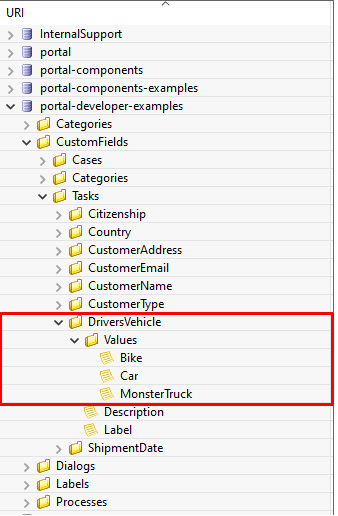
Following this path to add your custom field values: /CustomFields/Tasks/{fieldName}/Values/{value}
Please follow this Localize Label, Description, Category
and Values
to get more information.
Example YAML Configuration
DriversVehicle:
   Label: Drivers Vehicle
   Description: Vehicle they use for delivery
   HasCmsValues: true
   TYPE: STRING
In your CMS, the path should be
/CustomFields/Tasks/DriversVehicle/Values/Bike,
/CustomFields/Tasks/DriversVehicle/Values/Car or
/CustomFields/Tasks/DriversVehicle/Values/MonsterTruck.
Result
If
HasCmsValuesis set withtrue, the values from the CMS are used.If the values are entered and translated in the CMS, then the custom field is displayed based on the selected language.
If the translation for a value is missing in the CMS, the static value from the entry is used instead.
Sorting, Filtering, and Searching with Multi-Language Custom Fields
Sorting
HasCmsValues = falseor not set. Sorting is performed as usual based on the stored values.HasCmsValues = true. Sorting is performed based on values translated in the currently selected language.
Note
If HasCmsValues = true but a translation is missing in a specific language, only the translated values are sorted.
Searching
HasCmsValues = falseor not set. The search is performed as usual based on the stored value.HasCmsValues = true. The search is conducted in both the CMS translations and the original value.
Example: When language is German, a user can search for Fahrrad or the original value Bike.
Filtering
HasCmsValues = falseor not set. Filtering is performed as usual based on the stored value.HasCmsValues = true. The filter is conducted in both the CMS translations and the original value.
Important
When enabling the Multi-Language for Custom Fields, only accepted CONTAINS operator.
Tip
If a value needs to be filtered in multiple languages, all corresponding translations must be in the filter.
Conclusion
With Multi-Language Support for Custom Fields, we enable flexible and dynamic provision of field content in multiple languages. The functionalities for searching, sorting, and filtering have been adapted accordingly to ensure consistent behavior for multilingual content.