Settings
This guide covers Portal configuration including roles, permissions, variables, and integrations. Settings control global Portal behavior across dashboards, widgets, and administrative features. Proper configuration ensures Portal aligns with your organization’s security policies, business processes, and user experience requirements.
What Settings Control:
User interface language and translations
Security roles and permissions for Portal features
Global variables affecting Portal behavior
Document upload restrictions and virus scanning
External integrations (announcements, third-party apps, external links)
Statistical chart configurations for dashboards
Related Sections:
Permissions - Detailed permission reference
Dashboard Configuration - Configure dashboards
Customization - Extend Portal functionality
Deployment - Production deployment settings
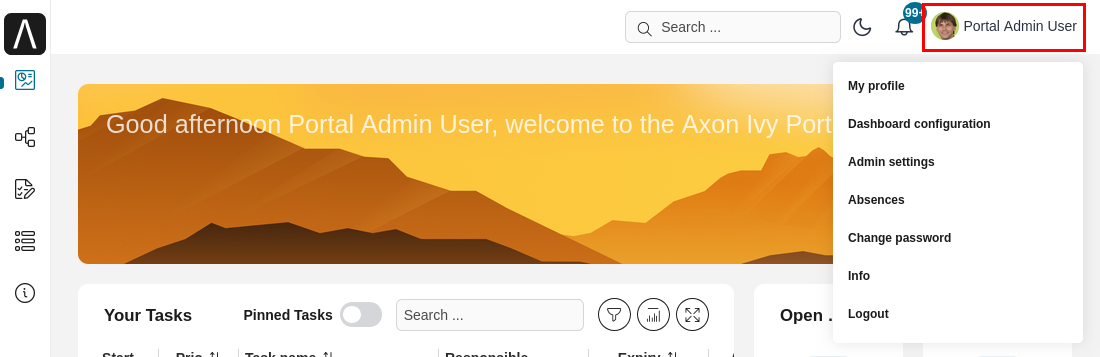
Portal Settings Configuration
Portal settings control global behavior and can be configured through multiple methods:
Configuration Methods:
Admin Settings UI: See HowTo: Update Portal Settings for user-friendly configuration
Variables File: Update
portal/config/variables.yamlfor development (survives Designer restarts)Engine Cockpit: Configure via Variables
Tip
In development, configure settings in portal/config/variables.yaml to avoid re-configuring after each Designer restart.
Language Settings
HowTo: Add a New Language to Portal
Export CMS Entries
Export all CMS entries of the Portal to an Excel file
Add Language Column
Open the exported Excel file
Add a new column at the end with the language locale code (e.g.,
itfor Italian)Refer to Java supported locales for supported locale codes
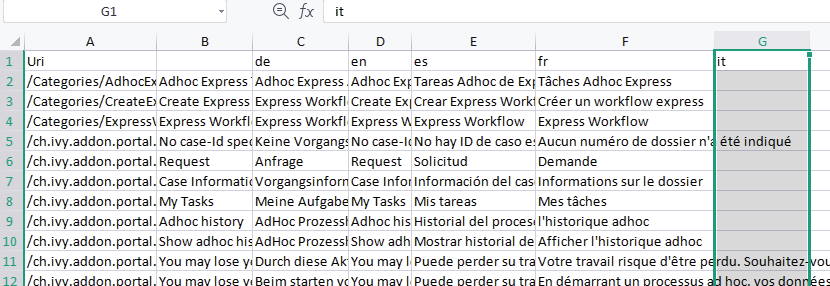
Translate CMS Entries
For each row in the Excel file, add the translated text in the new language column
Base your translations on the existing English (
en) or German (de) valuesEnsure all cells in the new language column are filled with appropriate translations
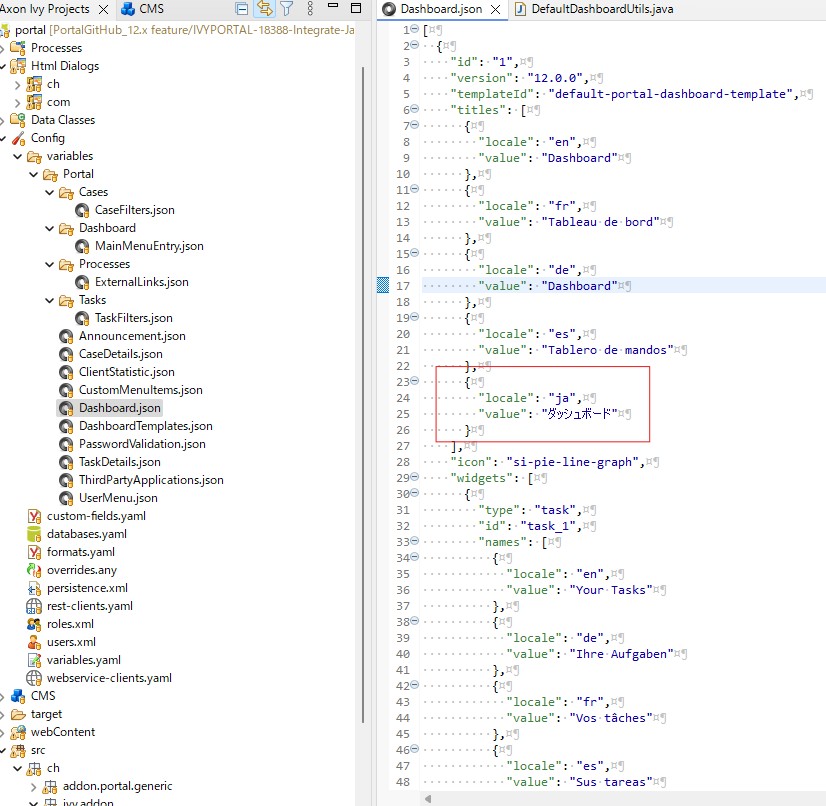
Update JSON Configuration Files
For each JSON file in
portal/config/variables/:Open the file and locate the
localearraysAdd a new locale/value pair for your language following the existing pattern
Example:
{"locale": "it", "value": "Translated text"}
Update Java Source Files
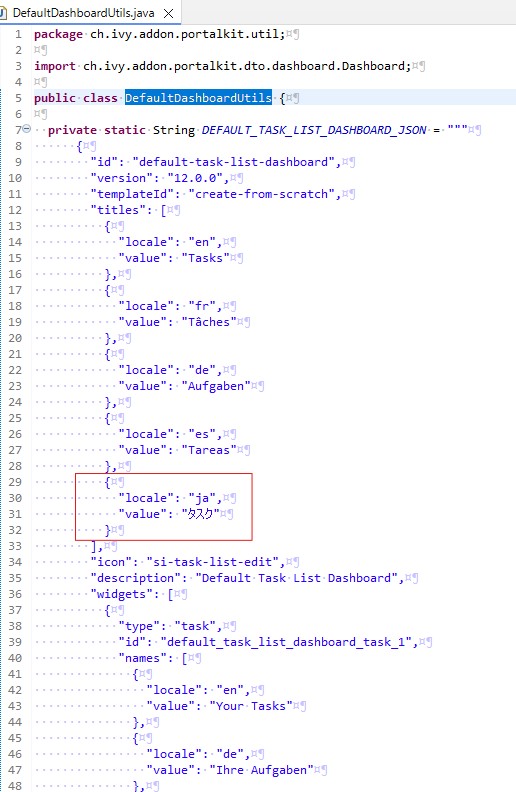
In
DefaultDashboardUtils.java:Add new locale/value entries for your language into default dashboard constants.
Import and Deploy
Import the Excel file back into the Portal
Redeploy the Portal
Role Configuration
Portal uses specific roles to control administrative access:
Role |
Description |
|---|---|
AXONIVY_PORTAL_ADMIN |
Can access Portal Admin page, configure internal role properties, and create public filters. |
Permission Settings
Configure permissions in the Engine Cockpit. All Portal permissions are grouped under “PortalPermissions”.
Important
Portal Permission Support:
The Portal is built as a layer above the Axon Ivy Engine core. Not every core engine permission is automatically honored or supported by the Portal. Supporting every core permission would require significant effort and increase maintenance overhead. If you require a specific engine permission that is not currently supported by the Portal, please contact Axon Ivy support to discuss your requirements.
Note
General Permission Rules:
Normal users can only see tasks and cases they can work on
Administrators with 🔑TaskReadAll and 🔑CaseReadAll can see all tasks/cases
Administrators can interact with, create, update, and delete all workflows
Normal users can only update/delete workflows they created and work on assigned tasks
Task Permissions
Add Note
User needs permission: 🔑TaskCaseAddNote
Delegate
Required permissions:
To see delegate action: 🔑TaskDisplayDelegateAction and 🔑TaskWriteActivator
To delegate personal/group tasks: 🔑TaskWriteActivatorOwnTasks (not assigned to Everybody by default)
Case owner delegation: 🔑CaseOwnerTaskDelegate allows delegating all related tasks within their case
Important
Only tasks ready for user processing can be delegated. Task state cannot be: CREATED, DONE, DESTROYED, RESUMED, FAILED
Reset
Required permissions:
To see reset action: 🔑TaskDisplayResetAction
To reset tasks: 🔑TaskResetOwnWorkingTask or 🔑TaskResetReadyForJoin or 🔑TaskReset
Important
Only works for tasks in states: RESUMED, PARKED, READY_FOR_JOIN, FAILED
Delete
User needs permission: 🔑TaskDestroy
Important
Only works if task state is not DESTROYED or DONE
Reserve
Required permissions:
To see reserve action: 🔑TaskDisplayReserveAction
To reserve a task: 🔑TaskParkOwnWorkingTask
Important
Only possible if task is in states: CREATED, RESUMED, SUSPENDED
Change Description
User needs permission: 🔑TaskWriteDescription
Important
Terminated tasks cannot be changed. Task state cannot be: DONE, DESTROYED, FAILED
Change Deadline
User needs permission: 🔑TaskWriteExpiryTimestamp
Important
Task cannot be in states: DONE, DESTROYED, FAILED
Change Priority
User needs permission: 🔑TaskWriteOriginalPriority
Important
Task cannot be in states: DONE, DESTROYED, FAILED
Display Additional Options
User needs permission: 🔑TaskDisplayAdditionalOptions
Display Workflow Events
User needs permission: 🔑TaskDisplayWorkflowEventAction
Display Custom Fields
User needs permission: 🔑TaskDisplayCustomFieldsAction
Share Task Details Link
User needs permission: 🔑ShareTaskDetailsLink
Change Expiry Activator
User needs permission: 🔑TaskWriteExpiryActivator
Important
Task cannot be in states: DONE, DESTROYED, FAILED
Read System Tasks
User needs permission: 🔑SystemTaskReadAll
Case Permissions
Add Note
User needs permission: 🔑TaskCaseAddNote
Delete
User needs permission: 🔑CaseDestroy
Important
Case state must be RUNNING
Change Description
User needs permission: 🔑CaseWriteDescription
Important
Case state cannot be DESTROYED
See Related Tasks of Case
Required permissions:
To see the action: 🔑ShowAllTasksOfCase
To view related tasks: 🔑TaskReadOwnCaseTasks or 🔑TaskReadAll
Important
Case state cannot be DESTROYED
Display Show Detail Link
User needs permission: 🔑ShowCaseDetails (not assigned to Everybody by default)
Share Case Details Link
User needs permission: 🔑ShareCaseDetailsLink
Display Custom Fields
User needs permission: 🔑CaseDisplayCustomFieldsAction
Other Permissions
Action |
Permission required |
|
|---|---|---|
Absence |
Read |
|
Create, edit |
||
Delete |
||
Read absences of all users |
||
Delete absences of all users |
||
Create new absence for all users |
||
Substitute |
Manage substitute |
|
Document |
Upload, delete |
|
Portal permission |
Access to full process list, it’s “Processes” on the left menu and link “Show all processes” on Dashboard |
|
Access to full task list, it’s “Tasks” on the left menu and link “Show full task list” on Dashboard |
||
Access to full case list, it’s “Cases” on the left menu |
||
Add note to task/case |
||
Display show more note |
||
Create public external link, all other users can see that link in the full process list |
||
Dashboard sharing |
||
Modify notification channels preferences in My Profile page |
||
Role management (Admin Settings) |
||
News management (Dashboard) |
||
Password validation settings |
||
Read all notes on tasks/cases |
Virus Scanning Settings
PrimeFaces is delivered with one implementation of the interface that uses VirusTotal. To enable VirusTotal you need to create a community account at the VirusTotal website. You receive an API key once you have an account. To configure the API key add the following snippet to the configuration/web.xml file:
<context-param>
<param-name>primefaces.virusscan.VIRUSTOTAL_KEY</param-name>
<param-value>PUT YOUR API KEY HERE</param-value>
</context-param>
By default, after you configured the context-param in the web XML file, the
Virus Scanning is enabled. You can change the variable EnableVirusScanner to
false in portal/config/variables.yaml if you want to disable virus scanning.
Reference: How to check if uploaded files contain a virus.
Warning
Files that are checked for viruses are uploaded to VirusTotal. If you may not store the data of your application on servers outside the internal network or a given country, you might want to refrain from using this solution.
Variables
These variables are stored as key-value pairs. They have to be edited in the Engine Cockpit.
Variable |
Default value |
Description |
|---|---|---|
PortalStartTimeCleanObsoletedDataExpression |
0 6 * * * |
Cron expression defines
the time to clean up data
of obsolete users. E.g.:
expression for at 6AM
every day is
|
PortalDeleteAllFinishedHiddenCases |
false |
If set to Otherwise, just cases which were generated by this Portal will be deleted. |
PortalHiddenTaskCaseExcluded |
true |
By default, Portal will
query tasks and cases
which are not hidden. If
set to |
PortalLoginPageDisplay |
true |
By default, Portal will
redirect to Login Page if
login is required and the
user is unknown.
Set to |
Configuration
These variables are stored in JSON format. You can edit them in the cockpit, or use the UI on the Portal Admin settings.
Portal Announcement
The standard announcement for Portal is intended to be used for general information (e.g. Downtime, Changes, etc.). This message can be seen by all Portal users.
Filename: variables.Portal.Announcement.json
Data model:
{
    "contents": [
        {
            "language": "en",
            "value": "The announcement content in English"
        }
    ],
    "enabled": false
}
contents: list of supported languages and content for each language.language: the language code such asen,de,es, andfrvalue: the announcement content of that language
enabled: the status of the announcement, true shows the announcement
Third Party Applications Linked Into Portal
You can define your custom menu item in the following JSON file. It will be included in the left menu.
Filename: variables.Portal.ThirdPartyApplications.json
Data model:
[
   {
      "id": "284352a58c7a48a2b64be8a946857c7a",
      "displayName": "{\"de\":\"AxonIvy ger\",\"en\":\"AxonIvy\"}",
      "menuIcon": "fa-group",
      "menuOrdinal": 1,
      "name": "{\"de\":\"AxonIvy ger\",\"en\":\"AxonIvy\"}",
      "link": "https://developer.axonivy.com/download"
   }
]
id: the identification number of a third-party application. It is an auto-generated UUID.displayName: the display name of the app that is shown in the left menu. Supports multi-language.menuIcon: the style class of the app icon that shows in the left menu.menuOrdinal: index of the app. Used to sort menu items in the left menu.name: the name of third-party app.link: the URL of third-party app.
Portal Statistic Charts
You can define filter logic, appearance, and other settings for all statistic charts that can be used by the Statistic widget of Portal dashboard.
Filename: variables.Portal.CustomStatistic.json
Data model:
{
  "id": "3e188e86a6534324b864167320ef3831",
  "version": "13.1.0",
  "statisticAggregation": {
    "field": "state",
    "type": "standard",
    "kpiField": "InvoiceTotalAmount",
    "aggregationMethod": "avg"
  },
  "filters": [
    {
      "field": "state",
      "values": [
        "DONE",
        "IN_PROGRESS",
        "OPEN"
      ],
      "operator": "in",
      "type": "standard"
    }
  ],
  "permissions": [
    "Everybody"
  ],
  "chartTarget": "task",
  "chartType": "bar",
  "icon": "si-add-circle",
  "refreshInterval": 300,
  "names": [
    {
      "locale": "en",
      "value": "New statistic"
    },
    {
      "locale": "fr",
      "value": "Nouvelle statistique"
    },
    {
      "locale": "de",
      "value": "Neue Statistik"
    },
    {
      "locale": "ja",
      "value": "新しい統計"
    },
    {
      "locale": "es",
      "value": "Nueva estadística"
    }
  ],
  "descriptions": [
    {
      "locale": "en",
      "value": "Demo new statistic"
    },
    {
      "locale": "fr",
      "value": "Démonstration d'une nouvelle statistique"
    },
    {
      "locale": "de",
      "value": "Neue Demo-Statistik"
    },
    {
      "locale": "ja",
      "value": "新しい統計のデモ"
    },
    {
      "locale": "es",
      "value": "Demo nueva estadística"
    }
  ],
  "barChartConfig": {
    "xTitles": [
      {
        "locale": "en",
        "value": "State"
      },
      {
        "locale": "fr",
        "value": "État"
      },
      {
        "locale": "de",
        "value": "Status"
      },
      {
        "locale": "ja",
        "value": "状態"
      },
      {
        "locale": "es",
        "value": "Estatus"
      }
    ],
    "yTitles": [
      {
        "locale": "en",
        "value": "Number of tasks"
      },
      {
        "locale": "fr",
        "value": "Nombre de tâches"
      },
      {
        "locale": "de",
        "value": "Anzahl der Aufgaben"
      },
      {
        "locale": "ja",
        "value": "タスクの数"
      },
      {
        "locale": "es",
        "value": "Número de tareas"
      }
    ],
    "backgroundColors": [
      "#6299f7",
      "#8dc261",
      "#98bffa",
      "#bee3cb",
      "#c8befa",
      "#f5bf9f",
      "#f8da96",
      "#f9908c"
    ]
  }
}
id: ID of the widget.version: current version of the widget.statisticAggregation: statistic’s aggregation.field: aggregation (group by) field.type: type of the field, could be standard or custom.kpiField(optional): the numeric custom field on which to perform calculations.aggregationMethod(optional): the calculation method to apply, could be sum, avg, max or min.
When
kpiFieldandaggregationMethodare not provided, returns count statistics (counting number of tasks or cases). In contrast, the system applies the specified aggregation method to the numeric values inkpiField.filters: filters for the statistic chart.field: field to filter.values: value of the filter to query.operator: operator for the filter.type: type of the field.
permissions: permissions for statistic chart.chartTarget: chart’s target, could be case or task.icon: icon for the statistic chart.refreshInterval: number of seconds for the chart auto-refreshed, minimum value is 60.names: name for the statistic chart, multi-language supported.descriptions: description for the statistic chart, multi-language supported.chartType: chart’s type, could be bar, line, pie or number.pie: Pie chart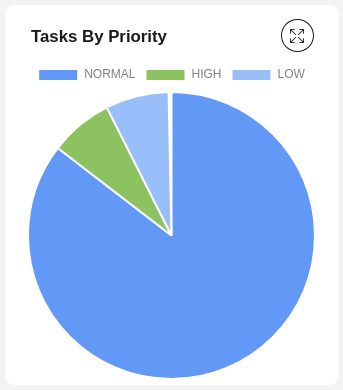
bar: Bar chart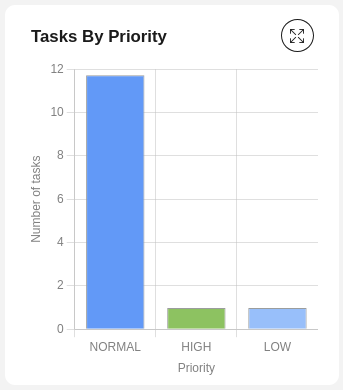
line: Line chart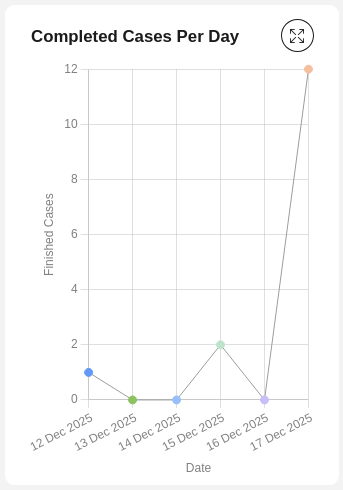
number: Labelled number chart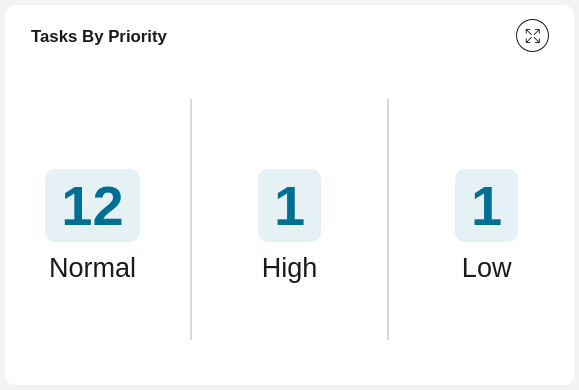
For some specific charts such as Bar, Pie, Line or Number, there are additional fields:
barChartConfig: additional fields for configuring theBarchart, you can add if chart type isbarxTitles: the multilingual display title for the x-axisyTitles: the multilingual display title for the y-axisbackgroundColors: the colors to display the chart
lineChartConfig: additional fields for configuring theLinechart, you can add if chart type islinexTitles: the multilingual display title for the x-axisyTitles: the multilingual display title for the y-axisbackgroundColors: the colors to display the chart
pieChartConfig: additional fields for configuring thePiechart, you can add if chart type ispiebackgroundColors: the colors to display the chart
numberChartConfig: additional fields for configuring theNumberchart, you can add if chart type isnumberhideLabel: toggle to show label of the number chart
Portal Processes External Links
The standard external links of the Portal are defined in the following file:
Filename: variables.Portal.Processes.ExternalLinks.json
Data model:
[
   {
      "id": "01322912db224658a222804802844a7b",
      "version": "10.0.9",
      "name": "Download latest Axon Ivy",
      "link": "https://developer.axonivy.com/download",
      "creatorId": 2,
      "icon": "fa-paperclip",
      "description": "https://developer.axonivy.com/download",
      "imageContent": "<your-image-data-as-base64>",
      "imageLocation": "/com/axonivy/portal/ExternalLink/dd91ec84-c5aa-4202-aeea-4500fbd394ef",
      "imageType": "jpeg",
      "permissions": [
         "Everybody"
      ]
   }
]
id: the identification of a link, auto-generated by UUIDversion: the version of the jsonname: the display name of a linklink: the URL of the linkcreatorId: the user id who create the link. This user can see and start the external link in any caseicon: the style class of the link icondescription: the description of a linkimageContent: the base64 data format of the process image. If this value is valid then it will be converted to a physical file. If you want to configure external link images when deploying, you just need to defineimageContentimageLocation: the location of the process image. This image is stored in Application CMS. Basically, this should be handled by the engineimageType: the extension of the process image. Basically, this should be handled by the enginepermissions: users have these roles can see and start the external link. If you don’t define it, default role is Everybody