Integrate A Side Step Process
Introduction
Side step processes let you attach one or more auxiliary workflow steps to an existing business process in Axon Ivy Portal without touching the core flow.
At runtime Portal reads a JSON definition from the custom field sideStepTask (task level) or sideStepCase (case level), shows the available side steps in the task action menu and launches them either
Synchronous - the main task pauses until the side step finishes, or
Asynchronous - the main task continues while the side step runs in parallel.
Portal delivers the framework (public APIs, DTOs and UI hooks); you design and own the actual side step BPMN, dialogs, signals and business logic.
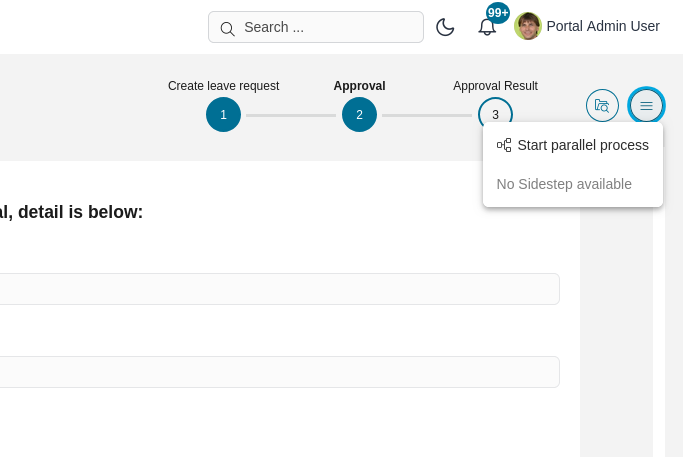
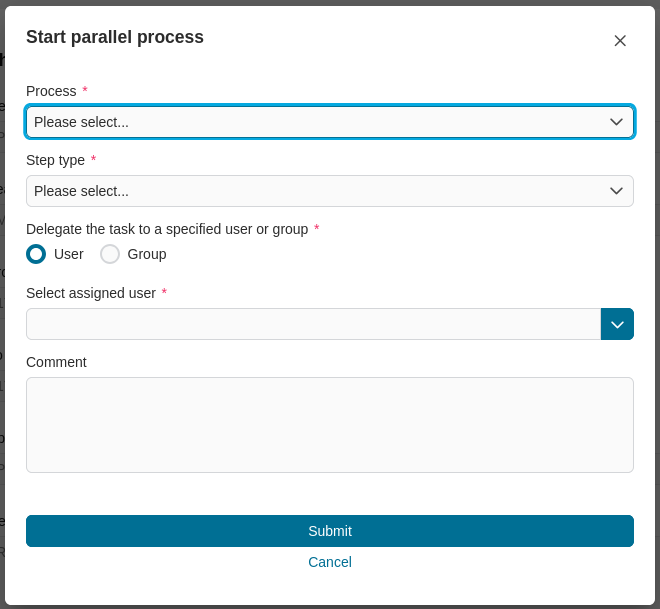
Side step configuration dialog
Benefits and Outcomes
Low integration effort – add or remove auxiliary steps without modifying the main process model.
Modular architecture – encourages clean separation between core and optional logic.
Greater agility – quickly provide customer-specific extensions (e.g. extra approvals, data collection forms) with minimal risk.
Parallel work – optional tasks can run concurrently, shortening throughput time.
Custom UX – you control the side step dialog, result views and security (assignee or group callables).
How to Use and Set Up
Model the side step process
Create a process that performs the additional work (for example “Ask for more details”) and define a signal that starts this process (e.g.
com:axonivy:portal:developerexample:sideStep:askMoreDetails).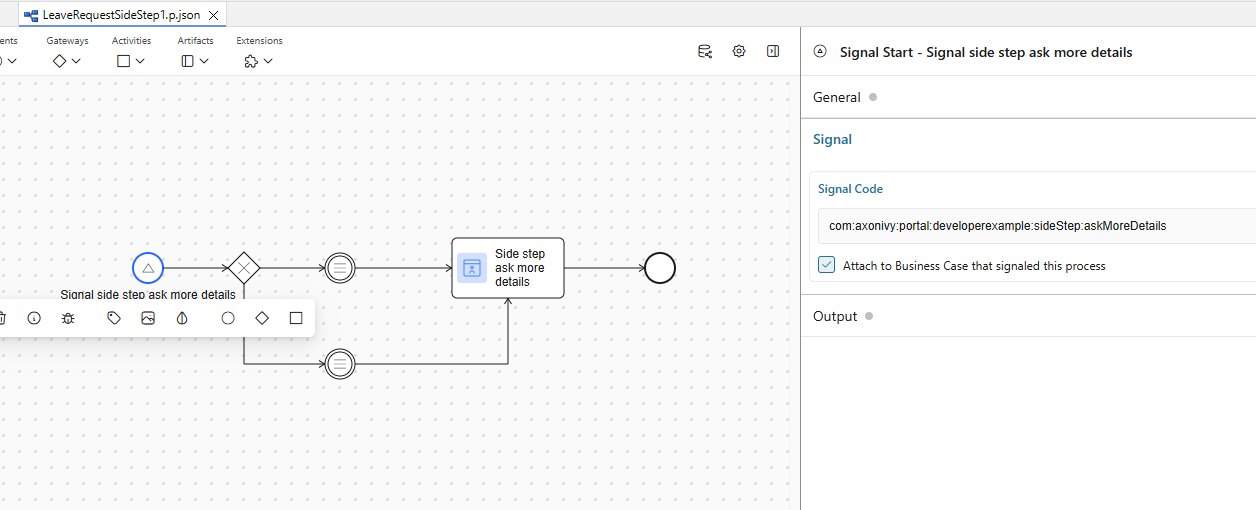
Define custom list of users and roles which the side step task can be assigned (optional)
Create a process with no parameter which return 2 lists type
ch.ivyteam.ivy.security.IRolewith the following namesuserRolesToDelegate: side step task can be assigned to all users who have role in this listrolesToDelegate: side step task can be assigned to all children roles in this list
If not defined, side step task can be assigned to all users and roles in the security context
Define configuration for side step by building a list of
SideStepProcessDTOobjects.// First configuration option - using CMS URI for multilingual process names SideStepProcessDTO dto1 = SideStepProcessDTO.builder() .processNameCmsUri("/Processes/SideStep/AskMoreDetails") .signal("com:axonivy:portal:developerexample:sideStep:askMoreDetails") .build(); // Second configuration option - with project-specific CMS URI SideStepProcessDTO dto2 = SideStepProcessDTO.builder() .processNameCmsUri("/Processes/SideStep/CEOApproval") .cmsProjectName("portal-developer-examples") // Optional - if not provided, uses current project context // Set signature name of the process which defines custom users and roles in the previous step .customSecurityMembersCallable("getCustomSecurityMemberForSideStep()") // Optional .signal("com:axonivy:portal:developerexample:sideStep:CEOApproval") .build(); // Define side step process dto list List processes = new List(); processes.add(dto1); processes.add(dto2);
Create a
SideStepConfigurationDTOobject ofportal-componentsfrom this list created on the above code snippet. Convert it to JSON and write the value to a custom text fieldFor a single task: save to custom text field
sideStepTaskon that task.For every task in a case: save to custom text field
sideStepCaseon that case.
// Create a SideStepConfigurationDTO object using CMS URIs for multilingual titles
// If the isParallelSideStep value is not defined, on the UI you will see a drop down to select

SideStepConfigurationDTO sideStepConfigurationDto = SideStepConfigurationDTO.builder()
  .processes(processes)
  .isParallelSideStep(true)
  .customParallelSideStepTitleCmsUri("/Processes/SideStep/CustomParallelTitle") // Optional
  .customSwitchSideStepTitleCmsUri("/Processes/SideStep/CustomSwitchTitle") // Optional
  .cmsProjectName("portal-developer-examples") // Optional - if not provided, uses current project context
  .build();

// Convert SideStepConfigurationDTO to Json
String jsonValue = BusinessEntityConverter.entityToJsonValue(sideStepDto);

// For side step task level
task.customFields().textField(CustomFields.SIDE_STEPS_TASK).set(jsonValue);
// Or for side step case level
ivy.case.customFields().textField(CustomFields.SIDE_STEP_CASE).set(jsonValue);
The generated Json value will have structure like this
{
  "version": "12.0.12",
  "processes": [
    {
      "signal": "com:axonivy:portal:developerexample:sideStep:askMoreDetails",
      "processNames": [
        {
          "value": "/Processes/SideStep/AskMoreDetails",
          "projectName": "portal-developer-examples"
        }
      ]
    },
    {
      "signal": "com:axonivy:portal:developerexample:sideStep:CEOApproval",
      "processNames": [
        {
          "value": "/Processes/SideStep/CEOApproval",
          "projectName": "portal-developer-examples"
        }
      ],
      "customSecurityMemberCallable": "getCustomSecurityMemberForSideStep()"
    },
    {
      "signal": "com:axonivy:portal:developerexample:sideStep:informCustomer",
      "processNames": [
        {
          "value": "/Processes/SideStep/InformCustomer",
          "projectName": "portal-developer-examples"
        }
      ]
    }
  ],
  "customParallelSideStepTitles": [
    {
      "value": "/Processes/SideStep/CustomParallelTitle",
      "projectName": "portal-developer-examples"
    }
  ],
  "customSwitchSideStepTitles": [
    {
      "value": "/Processes/SideStep/CustomSwitchTitle",
      "projectName": "portal-developer-examples"
    }
  ]
}
Build business case detail if needed
Your process needs to call the subprocess
SetBusinessDetailsPageof theportal-components, with paramlinkToBusinessDetailsPageset to the link of the custom business detail page in your project. You can also do this by usingBusinessDetailsAPI.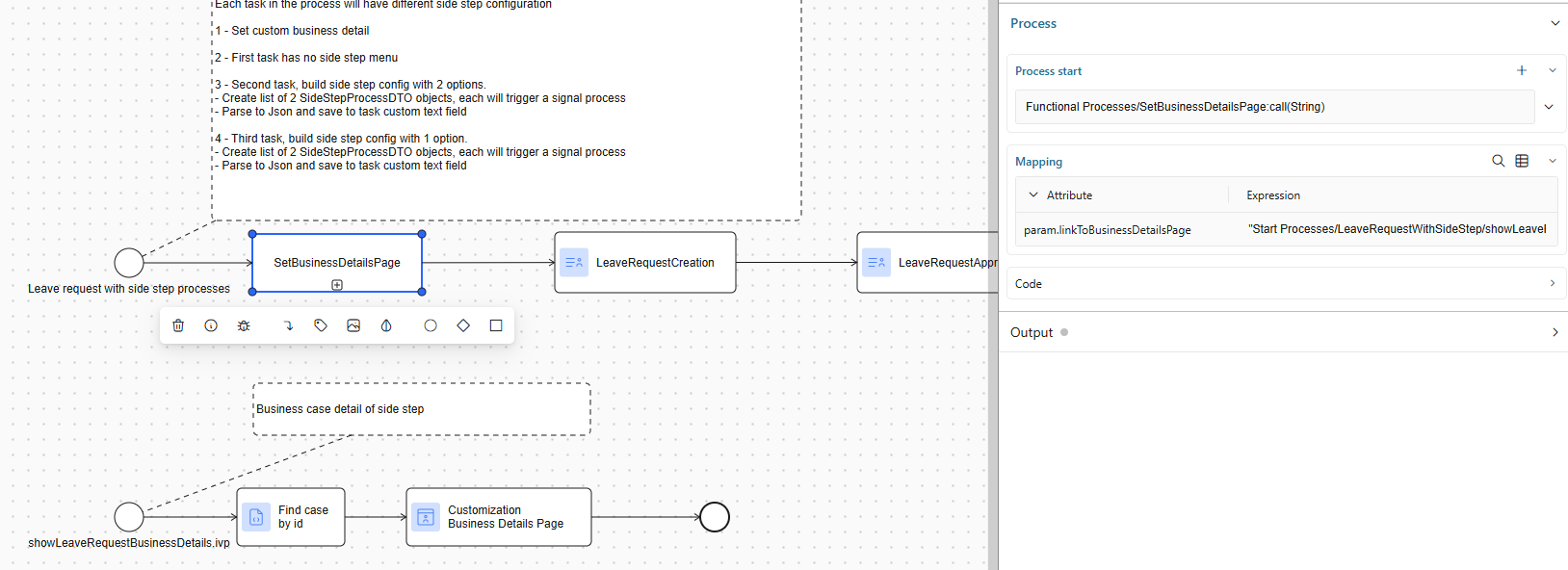
Start of the main task
When the user opens the task, Portal reads the field and populates the task action menu with the configured side steps.
User triggers a side step
Portal sends signal to your selected process, with the JSON parameters contain your input information like task uuid, case uuid, your comment. In case user select
SWITCHstep type (synchronously), Portal will park and setHIDEproperty to the original task until the side step completes. Otherwise the side step will run parallel with the original task.Handle data in the process which was triggered by Portal
Process developer gets data from the signal as JSON string, parses it to class
SideStepProcessParamDTOobject ofportal-components. This object contains data send from Portal to use for the process.SideStepProcessParamDTO data = BusinessEntityConverter.jsonValueToEntity(signal.getSignalData() as String, SideStepProcessParamDTO.class) as SideStepProcessParamDTO;
Handle completion
On finish your side step process must raise a done signal by calling API
SideStepAPI.finishSideStep(String originalTaskUuid, boolean isParallelSideStep). This API will reactivate and removeHIDEproperty from the parked task if the side step task isSWITCHstep type (synchronously).