ドキュメントテーブル
このコンポーネントは、ドキュメントのエントリの表示、アップロード、プレビュー、ダウンロード、削除機能を持つケースドキュメントテーブルです。
属性
Name |
Default |
Type |
Description |
|---|---|---|---|
nameColumnRendered |
TRUE |
Boolean |
Boolean value to specify the rendering of the name column, when set to false name column will not be rendered. |
sizeColumnRendered |
TRUE |
Boolean |
Boolean value to specify the rendering of the size column, when set to false size column will not be rendered. |
typeColumnRendered |
TRUE |
Boolean |
Boolean value to specify the rendering of the type column, when set to false type column will not be rendered. |
functionColumnRendered |
TRUE |
Boolean |
Boolean value to specify the rendering of the function column, when set to false function column will not be rendered. |
previewRendered |
TRUE |
Boolean |
Boolean value to specify the rendering of the preview icon, when set to false preview icon will not be rendered. |
uploadRendered |
TRUE |
Boolean |
Boolean value to specify the rendering of the upload icon, when set to false upload icon will not be rendered. |
downloadRendered |
TRUE |
Boolean |
Boolean value to specify the rendering of the download icon, when set to false download icon will not be rendered. |
deleteRendered |
TRUE |
Boolean |
Boolean value to specify the rendering of the delete icon, when set to false delete icon will not be rendered. |
messageRendered |
TRUE |
Boolean |
Boolean value to specify the rendering of the message, when set to false message will not be rendered. |
fileLimit |
-1 |
Integer |
Number of files are in the given ICase. |
sizeLimit |
null |
Long |
Individual uploading file size limit in bytes. |
updatedComponentAfterUploaded |
null |
String |
Component will be triggered the update after document is uploaded. |
previewIcon |
fa-eye |
String |
Icon class will be displayed in preview dialog. |
previewStyleClass |
null |
String |
Styles for preview link. |
previewpreviewDialogStyleClass |
null |
String |
Styles for preview dialog. |
previewPDFStyleClass |
null |
String |
Styles for PDF preview dialog. |
previewImageStyleClass |
null |
String |
Styles for image preview dialog. |
downloadIcon |
fa-download |
String |
Icon class will be displayed in download link. |
downloadStyleClass |
null |
String |
Styles for download link. |
deleteIcon |
fa-trash-o |
String |
Icon class will be displayed in delete link. |
deleteStyleClass |
null |
String |
Styles for delete link. |
updatedComponentAfterDeleted |
null |
String |
Component will be triggered the update after document is deleted. |
selectedType |
String |
String value to specify the selected document types, by default it will be first element in |
|
typeSelectionItems |
DOCUMENTATION,CONTRACT,INFORMATION,EMAIL,OTHERS |
String |
String value to specify the list of document type. |
enableScriptCheckingForUploadedDocument |
Boolean |
Boolean value to specify script checking. Set to
true to enable script checking.The setting will detect Portal setting
Portal.Document.EnableScriptChecking as its default value, refer to HowTo: Update Portal Settings for more details.If the Portal setting is not available, defaults to
false. |
|
enableVirusScannerForUploadedDocument |
Boolean |
Boolean value to specify virus scanning. Set to
true to enable virus scanning. Refer to Virus Scanning Setting for more details.The setting will detect Portal setting
Portal.Document.EnableVirusScanner as its default value, refer to HowTo: Update Portal Settings for more details.If Portal setting is not available, default value is
false. |
|
allowedUploadFileTypes |
String |
String value to specify the list of file extension that can be uploaded.
The setting will detect Portal setting
Portal.Document.WhitelistExtension as its default value, refer to HowTo: Update Portal Settings for more details.If Portal setting is not available, default value is
doc,docx,xls,xlsx,xlsm,csv,pdf,ppt,pptx,txt,zip,jpg,jpeg,bmp,png. |
ウイルススキャン
ドキュメントテーブル には、ファイルをシステムにアップロードする前に、ファイル内の有害なスクリプトやウイルスをチェックするオプションが用意されています。
有害なスクリプトをチェックするには、
enableScriptCheckingForUploadedDocumentをtrueに設定します。ウイルススキャンを有効にするには、
enableVirusScannerForUploadedDocumentをtrueに設定します。
コードの例:
<ic:com.axonivy.portal.components.DocumentTable id="document-table-component"
   enableScriptCheckingForUploadedDocument="true"
   enableVirusScannerForUploadedDocument="true" />
ウイルススキャンの詳細については、ウイルススキャンの設定 を参照してください。
カスタマイズ
以下の情報を使用して、プロジェクトで 4 つの呼び出し可能サブプロセスを作成し、 ドキュメントテーブル の機能をカスタマイズします。
Tip
portal-component-examples プロジェクトの CustomDocumentFeatures プロセスを参照して、カスタマイズ方法を確認できます。
ドキュメントリストの取得
ドキュメントテーブル のドキュメントの取得方法をカスタマイズするには、以下を使用して呼び出し可能サブプロセスを作成します。
シグネチャ:portalGetDocumentItems
名前 |
タイプ |
|---|---|
パラメーター |
|
businessCase |
ch.ivyteam.ivy.workflow.ICase |
結果 |
|
documents |
java.util.List<com.axonivy.portal.components.ivydata.bo.IvyDocument> |
message |
java.lang.String |
Note
DMS からドキュメントリストを取得したら、 List<ch.ivy.addon.portal.component.ivydata.bo.IvyDocument> に変換してください。
id、 name 、 contentType をマッピングする場合、これらのフィールドは必須です。
ドキュメントのアップロード
ユーザーがドキュメントをアップロードする際の ドキュメントテーブル の動作をカスタマイズするには、以下を使用して呼び出し可能サブプロセスを作成します。
Signature: portalUploadDocumentItem
名前 |
タイプ |
注記 |
|---|---|---|
パラメーター |
||
businessCase |
ch.ivyteam.ivy.workflow.ICase |
|
uploadedFile |
org.primefaces.model.file.UploadedFile |
|
enableScriptCheckingForUploadedDocument |
java.lang.Boolean |
|
enableVirusScannerForUploadedDocument |
java.lang.Boolean |
|
allowedUploadFileTypes |
java.lang.String |
|
結果 |
||
uploadedDocument |
ch.ivyteam.ivy.workflow.document.IDocument |
|
message |
java.lang.String |
|
status |
java.lang.String |
OK または FAIL |
ドキュメントのダウンロード
ユーザーが ドキュメントテーブル からドキュメントをダウンロードする際の動作をカスタマイズするには、以下を使用して呼び出し可能サブプロセスを作成します。
シグネチャ:portalDownloadDocumentItem
名前 |
タイプ |
|---|---|
パラメーター |
|
businessCase |
ch.ivyteam.ivy.workflow.ICase |
document |
com.axonivy.portal.components.ivydata.bo.IvyDocument |
結果 |
|
streamedContent |
org.primefaces.model.StreamedContent |
ドキュメントの削除
ユーザーが ドキュメントテーブル からドキュメントを削除する際の動作をカスタマイズするには、以下を使用して呼び出し可能サブプロセスを作成します。
シグネチャ:portalDeleteDocumentItem
名前 |
タイプ |
|---|---|
パラメーター |
|
businessCase |
ch.ivyteam.ivy.workflow.ICase |
document |
com.axonivy.portal.components.ivydata.bo.IvyDocument |
結果 |
|
message |
java.lang.String |
ユーザーインターフェース
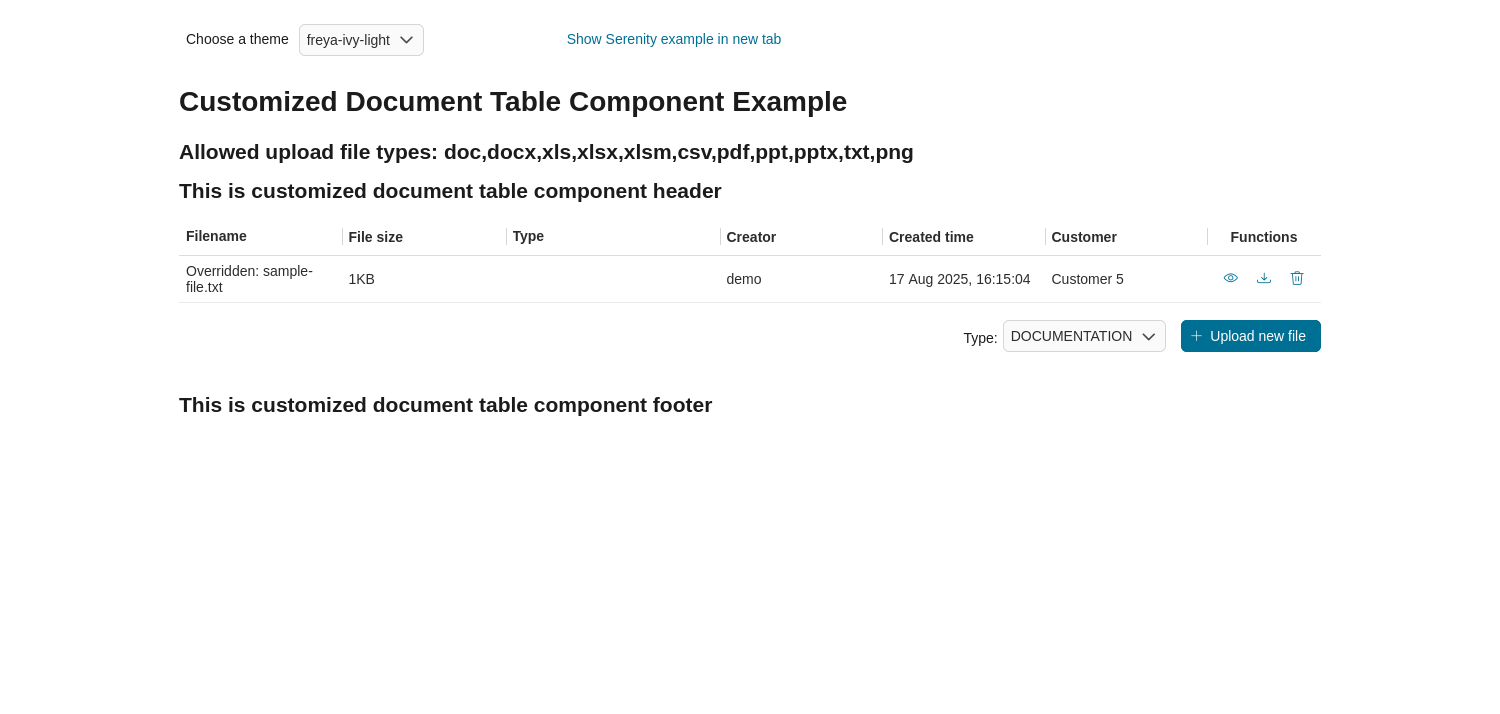
機能だけでなく、新しい列の追加やデフォルトの列の削除など、 ドキュメントテーブル の UI もカスタマイズできます。
コードの例:
<h:form id="form">
   <ic:com.axonivy.portal.components.DocumentTable id="document-table-component"
      allowedUploadFileTypes="doc,docx,xls,xlsx,xlsm,csv,pdf,ppt,pptx,txt,png"
      typeSelectionItems="#{documentTableExampleBean.documentTypes}">
      <f:facet name="componentHeader">
         <h2>This is the customized document table component header</h2>
      </f:facet>
      <p:column headerText="Creator" styleClass="document-creator-column">
         <h:outputText id="creator" value="#{document.creation.userName}" title="#{document.creation.userName}" />
      </p:column>
      <p:column headerText="Created time" styleClass="document-created-column">
         <h:outputText id="created-time" value="#{document.creation.timestamp}" title="#{document.creation.timestamp}" />
      </p:column>
      <p:column headerText="Customer" styleClass="document-customer-column">
         <h:outputText id="customer" value="#{document.customer}" title="#{document.customer}" />
      </p:column>
      <f:facet name="componentFooter">
         <h2>This is the customized document table component footer</h2>
      </f:facet>
   </ic:com.axonivy.portal.components.DocumentTable>
</h:form>
Tip
詳細については、 portal-components-examples プロジェクトの DocumentTableExample プロセスを参照してください。
移行に関する注記
10.0.x から 10.0.12 への移行
このバージョンから、 ドキュメントテーブル の機能のプロセスのオーバーライドがサポート対象外になりました。 以下のガイドラインに従って、サブプロセスのオーバーライドを移行してください。
プロジェクトから
GetDocumentItems、UploadDocumentItem、DeleteDocumentItem、DownloadDocumentItemのサブプロセスのオーバーライドを削除します。以下のとおり、呼び出し可能な開始サブプロセスのシグネチャを変更します。
サブプロセス
新しいシグネチャ
GetDocumentItems
portalGetDocumentItems
UploadDocumentItem
portalUploadDocumentItem
DeleteDocumentItem
portalDownloadDocumentItem
DownloadDocumentItem
portalDeleteDocumentItem
ドキュメントテーブル がこれまでと同じように動作するはずです。
10.0.0 への移行
HTML ファイルのコードを置き換えます。
ic:ch.ivy.addon.portalkit.component.document.DocumentTableをic:com.axonivy.portal.components.DocumentTableに置き換えてください。必要に応じて、新しい
enableScriptCheckingForUploadedDocument、enableVirusScannerForUploadedDocument、allowedUploadFileTypes属性の値の更新を検討します。必要な場合はサブプロセスをオーバーライドし、ビジネスをそれに合わせます。
新しいサブプロセス
非推奨のサブプロセス
GetDocumentItems
GetDocumentList
UploadDocumentItem
UploadDocument
DeleteDocumentItem
DeleteDocument
DownloadDocumentItem
DownloadDocument
IvyDocument をカスタマイズした場合は、必ず
com.axonivy.portal.components.ivydata.bo.IvyDocumentクラスから拡張してください。typeSelectionItemsとselectedType属性がcom.axonivy.portal.components.enums.DocumentTypeを使用するようになりました。ch.ivy.addon.portalkit.enums.DocumentTypeをcom.axonivy.portal.components.enums.DocumentTypeに置き換えてください。Note
GetDocumentListOverride、UploadDocumentOverride など、オーバーライドされた重複する設定、サブプロセス、データクラスを削除してください。