IFrame In Portal
Since Portal 8, all processes and tasks start inside an iFrame by default. Your HTML dialogs are automatically rendered in an isolated iFrame context, providing decoupling from Portal internals, simplified migrations, CSS/JavaScript isolation, and full responsive design support.
Important
By default, processes and tasks start inside an iFrame. No configuration is required unless you want to customize this behavior.
Templates to Use with IFrame
Use the frame-10 templates provided by Axon Ivy core (using the Freya theme). These templates are optimized for iFrame rendering and fully support responsive designs.
Template Features:
Automatic iFrame IntegrationSeamless integration with Portal iFrame architecture
Responsive LayoutFull support for responsive designs across all device sizes
Portal UI ComponentsIncludes task actions, case information, and process step visualization
Configurable DetailsCustomizable task details and branding options
Configuration Levels
Control whether tasks start in an iFrame at multiple levels. Portal evaluates these settings in priority order, with more specific levels overriding general ones.
Priority Order: Request Start (highest) → Task → Case → Engine (lowest, default: true)
Level |
Priority |
Description |
|---|---|---|
Request Start |
Highest |
Set |
Task |
High |
Set |
Case |
Medium |
Set |
Engine |
Lowest |
Global setting |
Request Start Level
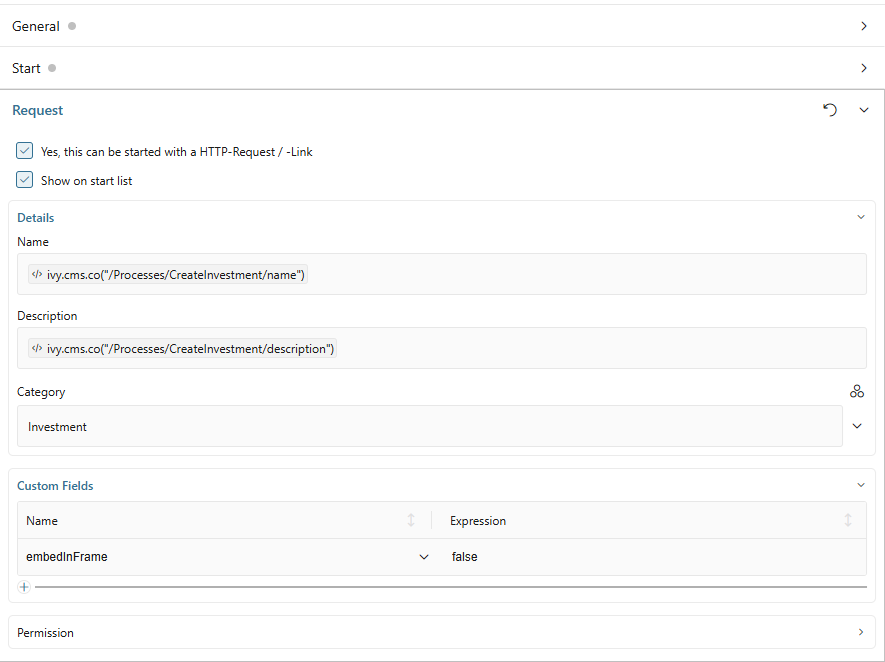
Set the embedInFrame field in Request tab custom fields:
true: Start inside iFramefalse: Do not start inside iFrameUnset: Use Task, Case, or Engine configuration
Task Level
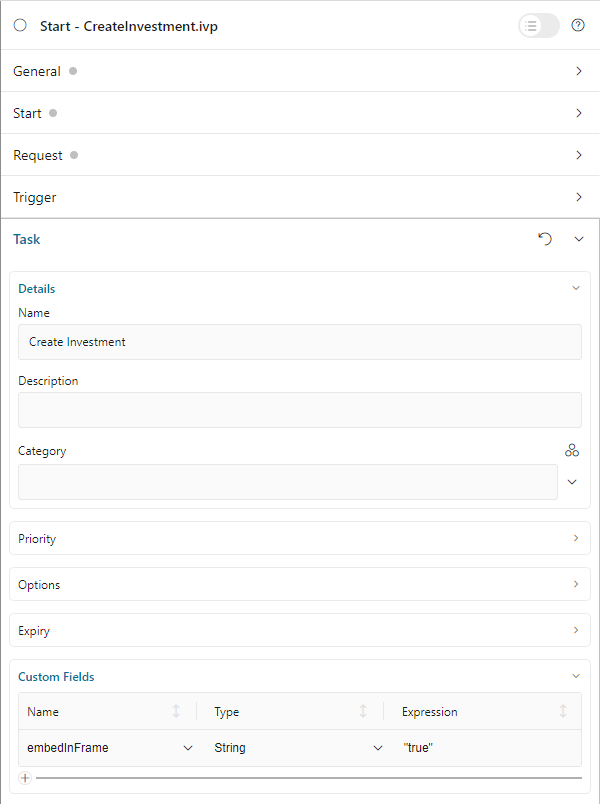
Set the embedInFrame field in Task custom fields:
true: Start inside iFramefalse: Do not start inside iFrameUnset: Use Case or Engine configuration
Case Level
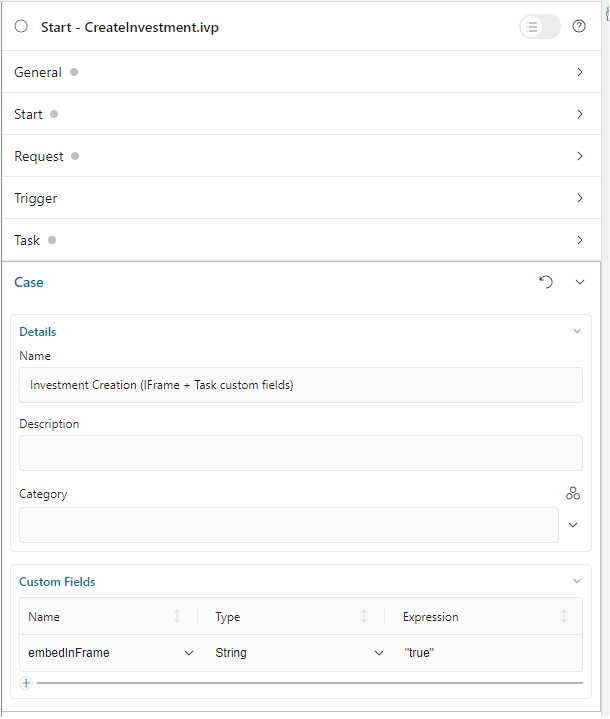
Set the embedInFrame String field in Case custom fields:
true: Start inside iFramefalse: Do not start inside iFrameUnset: Use Engine configuration
Engine Level
Portal Administrators can globally configure all tasks to start inside iFrames by setting the Portal.EmbedInFrame value in Portal admin settings.
Refer to HowTo: Update Portal Settings for configuration details.
Configure IFrame Template
Portal provides extensive configuration options for iFrame templates to customize the appearance and behavior of embedded tasks, including task name and icon customization, process chain visualization, case information display, task action buttons, custom breadcrumb views, and card-style frame layout.
Template Parameters Reference
Task Details
taskName(string)Custom text for the task name display.
taskIcon(string)Icon using Streamline or Font Awesome (e.g.,
"si si-bulb").isHideTaskName(boolean, default: false)true= hide task name,false= show.
Case Information
caseId(string)ID of the case to display in case information dialog.
isHideCaseInfo(boolean, default: false)true= hide “Show Information” button,false= show.
Process Steps
currentProcessStep(string/number)Current step index or step name.
processSteps(string/array)List of step names or JSON string.
isShowAllSteps(boolean, default: false)true= show all steps on large screens,false= compact view.processChainDirection(string)"VERTICAL"or"HORIZONTAL".processChainShape(string)"LINE"or"CIRCLE".
Task Actions
isHideTaskAction(boolean, default: false)true= hide task action button,false= show.isWorkingOnATask(boolean, default: true)true= show navigation warning,false= no warning.
Miscellaneous
announcementInvisible(boolean, default: false)true= hide announcements,false= show.isCardFrame(boolean, default: false)true= display content in card-style container,false= standard.viewName(string)Custom breadcrumb view (see View Names below).
Available View Names:
HOME, PROCESS, TASK, TASK_DETAIL, CASE_DETAIL, CASE, TECHNICAL_CASE, RELATED_TASK, USER_PROFILE, ABSENCES_MANAGEMENT, DASHBOARD_CONFIGURATION, EDIT_DASHBOARD_DETAILS, PROCESS_VIEWER, PORTAL_MANAGEMENT, NOTIFICATION
Configuration Methods
Configure iFrame templates using the IFrameTaskConfig component.
Note
Always sanitize your parameters before passing them to avoid XSS vulnerabilities. Use SanitizeAPI.escapeForJavascript for dynamic values.
Using IFrameTaskConfig Component
The recommended approach uses the Portal component for type-safe configuration:
<h:body>
   <ui:composition template="/layouts/frame-10.xhtml">
      <ui:define name="content">
         <ic:com.axonivy.portal.components.IFrameTaskConfig
            taskName="Approve Investment"
            taskIcon="si si-bulb"
            isHideTaskName="false"
            caseId="123456"
            isHideCaseInfo="false"
            currentProcessStep="0"
            processSteps='["Create Investment Request", "Approve Investment Request"]'
            isShowAllSteps="true"
            processChainDirection="VERTICAL"
            processChainShape="LINE"
            isHideTaskAction="false"
            isWorkingOnATask="true"
            announcementInvisible="false"
            isCardFrame="true"
            viewName="TASK_DETAIL"
         />

         <!-- Your custom UI content -->
         <h:form>
            <!-- ... -->
         </h:form>
      </ui:define>
   </ui:composition>
</h:body>
Using JavaScript (Deprecated)
Warning
This method is deprecated and will be removed in Portal 14. Migrate to IFrameTaskConfig component.
<h:body>
   <ui:composition template="/layouts/frame-10.xhtml">
      <ui:define name="content">
         <script>
            window.taskName = "Approve Investment";
            window.taskIcon = "si si-bulb";
            window.isHideTaskName = false;
            window.caseId = "123456";
            window.isHideCaseInfo = false;
            window.currentProcessStep = 0;
            window.processSteps = ["Create Investment Request", "Approve Investment Request"];
            window.isShowAllSteps = true;
            window.processChainDirection = "VERTICAL";
            window.processChainShape = "LINE";
            window.isHideTaskAction = false;
            window.isWorkingOnATask = true;
            window.announcementInvisible = false;
            window.isCardFrame = true;
            window.viewName = "TASK_DETAIL";
         </script>

         <!-- Your custom UI content -->
      </ui:define>
   </ui:composition>
</h:body>
Configuration Examples
Configure Task Details
You can customize task details, such as the task name and icon.
<ic:com.axonivy.portal.components.IFrameTaskConfig
   taskName="Approve Investment Request"
   taskIcon="si si-bulb"
   isHideTaskName="false"
/>
Configure Case Information
Customize how case details are displayed and whether to show the “Show Information” button.
<ic:com.axonivy.portal.components.IFrameTaskConfig
   caseId="#{ivy.case.uuid}"
   isHideCaseInfo="false"
/>
Configure Process Steps
<ic:com.axonivy.portal.components.IFrameTaskConfig
   currentProcessStep="1"
   processSteps='["Create Request", "Manager Approval", "Finance Review", "Complete"]'
   isShowAllSteps="true"
   processChainDirection="HORIZONTAL"
   processChainShape="LINE"
/>
Note
Add JSP function tag to your HTML dialog: xmlns:fn="http://xmlns.jcp.org/jsp/jstl/functions"
Configure Task Actions
Control the visibility and behavior of task-related buttons and actions.
<ic:com.axonivy.portal.components.IFrameTaskConfig
   isHideTaskAction="false"
   isWorkingOnATask="true"
/>
Configure Card Frame Layout
<ic:com.axonivy.portal.components.IFrameTaskConfig
   isCardFrame="true"
   announcementInvisible="false"
   viewName="TASK_DETAIL"
/>
Complete Configuration Example
<h:body>
   <ui:composition template="/layouts/frame-10.xhtml">
      <ui:define name="content">
         <ic:com.axonivy.portal.components.IFrameTaskConfig
            taskName="#{data.taskName}"
            taskIcon="si si-file-edit"
            isHideTaskName="false"
            caseId="#{ivy.case.uuid}"
            isHideCaseInfo="false"
            currentProcessStep="#{data.currentStep}"
            processSteps="#{portalComponentUtilsBean.convertToJSON(data.processSteps)}"
            isShowAllSteps="true"
            processChainDirection="HORIZONTAL"
            processChainShape="LINE"
            isHideTaskAction="false"
            isWorkingOnATask="true"
            announcementInvisible="false"
            isCardFrame="true"
            viewName="TASK_DETAIL"
         />

         <h:form id="investmentForm">
            <p:panel header="Investment Request">
               <!-- Your form fields -->
            </p:panel>

            <p:commandButton value="Submit" action="#{logic.submit}" />
            <p:commandButton value="Cancel" action="#{logic.cancel}" />
         </h:form>
      </ui:define>
   </ui:composition>
</h:body>
Developer Tips
JavaScript String Sanitization
Always sanitize your data before sending it to prevent XSS attacks. Portal provides the public API SanitizeAPI.escapeForJavascript in the portal-components project.
Example:
import com.axonivy.portal.components.publicapi.SanitizeAPI;

public class TaskBean {
   public String getSafeTaskName() {
      String rawTaskName = getUserInputTaskName();
      return SanitizeAPI.escapeForJavascript(rawTaskName);
   }
}
In your HTML dialog:
<ic:com.axonivy.portal.components.IFrameTaskConfig
   taskName="#{taskBean.safeTaskName}"
/>
Tip
Always sanitize user input, database values, or any dynamic content before passing to Portal components or JavaScript.
Best Practices
Use IFrameTaskConfig Component: Prefer the component-based approach over JavaScript configuration
Sanitize All Parameters: Use
SanitizeAPI.escapeForJavascriptfor dynamic valuesProcess Steps: Provide clear, descriptive step names for better user experience
Task Icons: Use consistent icon styles (Streamline or Font Awesome) across your application
Card Frame: Enable
isCardFramefor better visual separation of embedded content